Connecting an MCP client to Sonity
Estimated reading time: 5 minutes.
Every MCP client needs the same two values, which you get from the in-app MCP dialog (see Authentication):
- MCP endpoint URL:
https://app.sonity.net/mcp - Authorization header:
Authorization: Bearer <your-access-token>
This page gives copy-pasteable config for the most common clients, plus a raw cURL example for scripting.
Claude Desktop
Automatic method
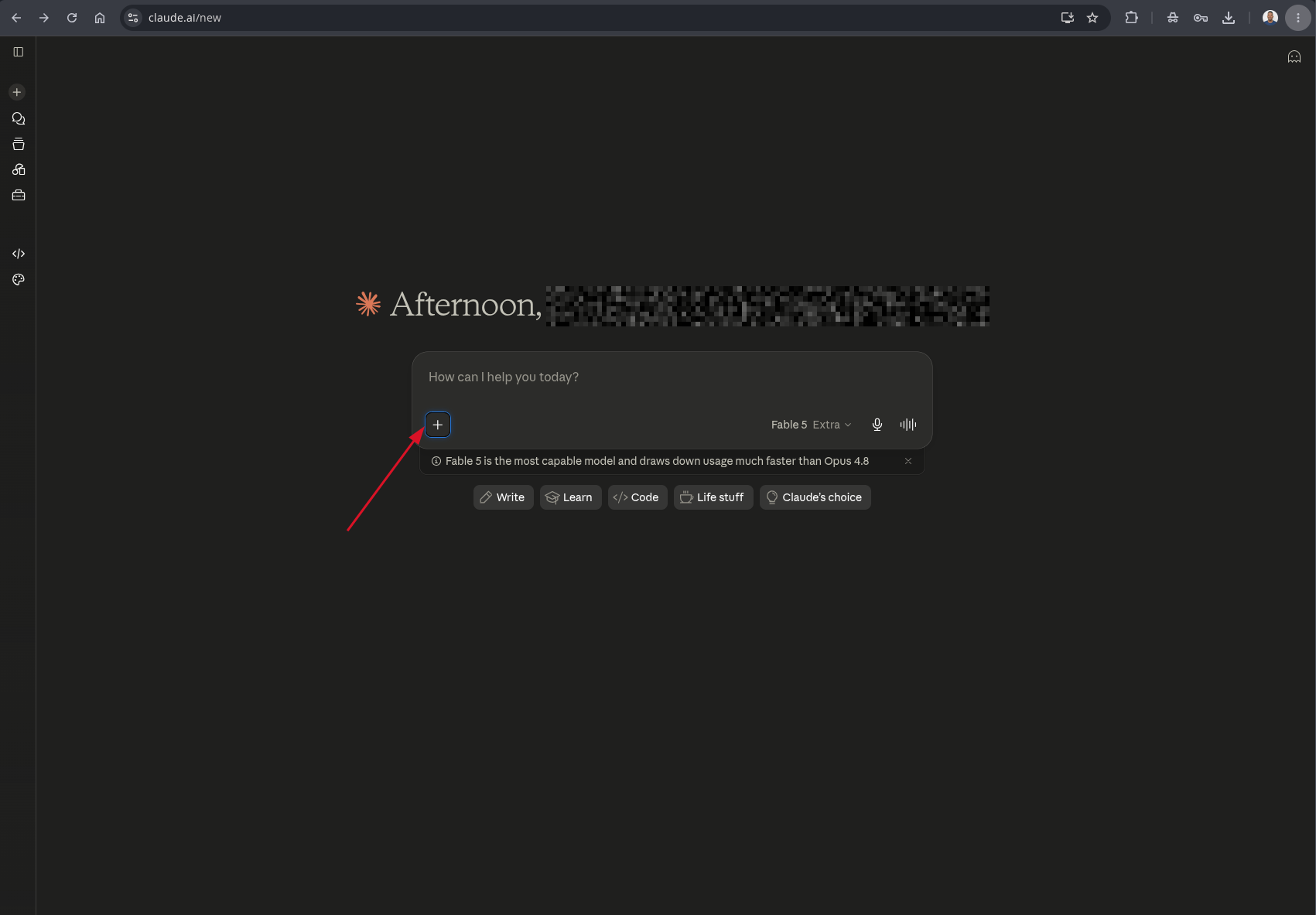
Step 1: Open Claude
Open Claude Desktop or website then in the Prompt box click the + sign:
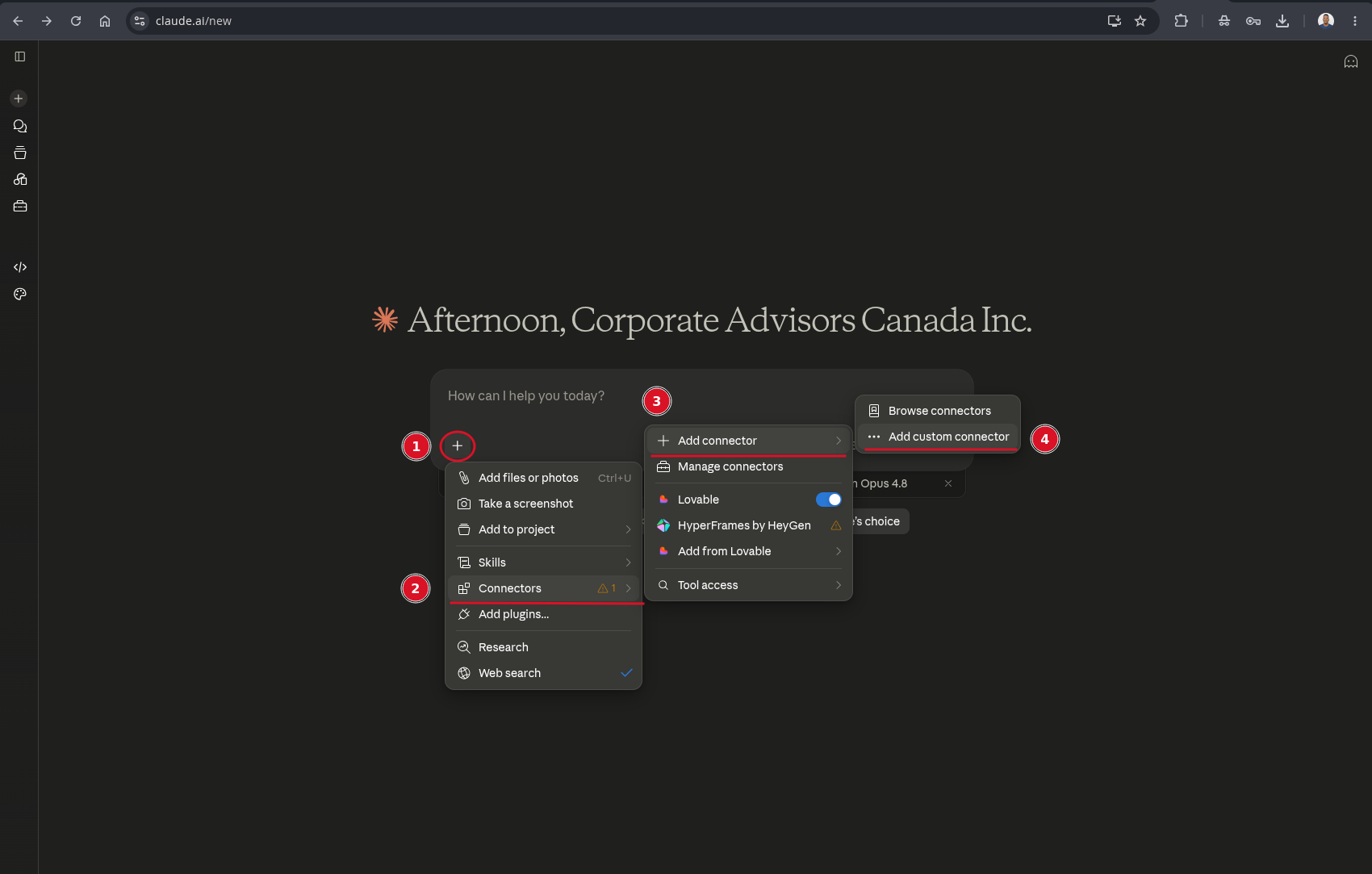
Step 2: Add a custom connector
- Click the + sign
- A menu will pop up with options. Click "Connectors"
- Click "+ Add Connector"
- Click "Add Custom Connector"
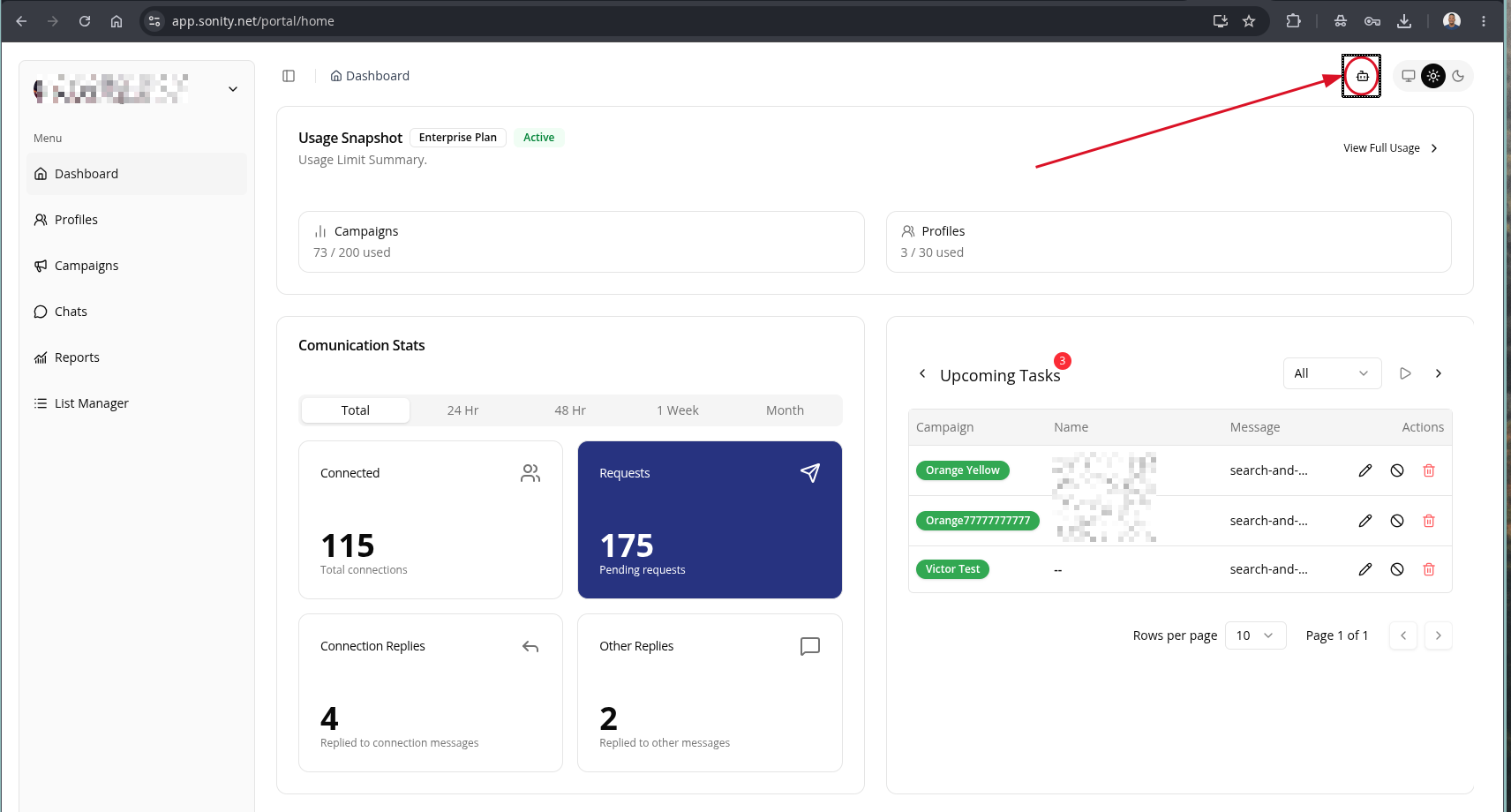
Step 3: Authorize MCP Stage 1
In another tab login to your Sonity account and click the AI icon (robot icon):
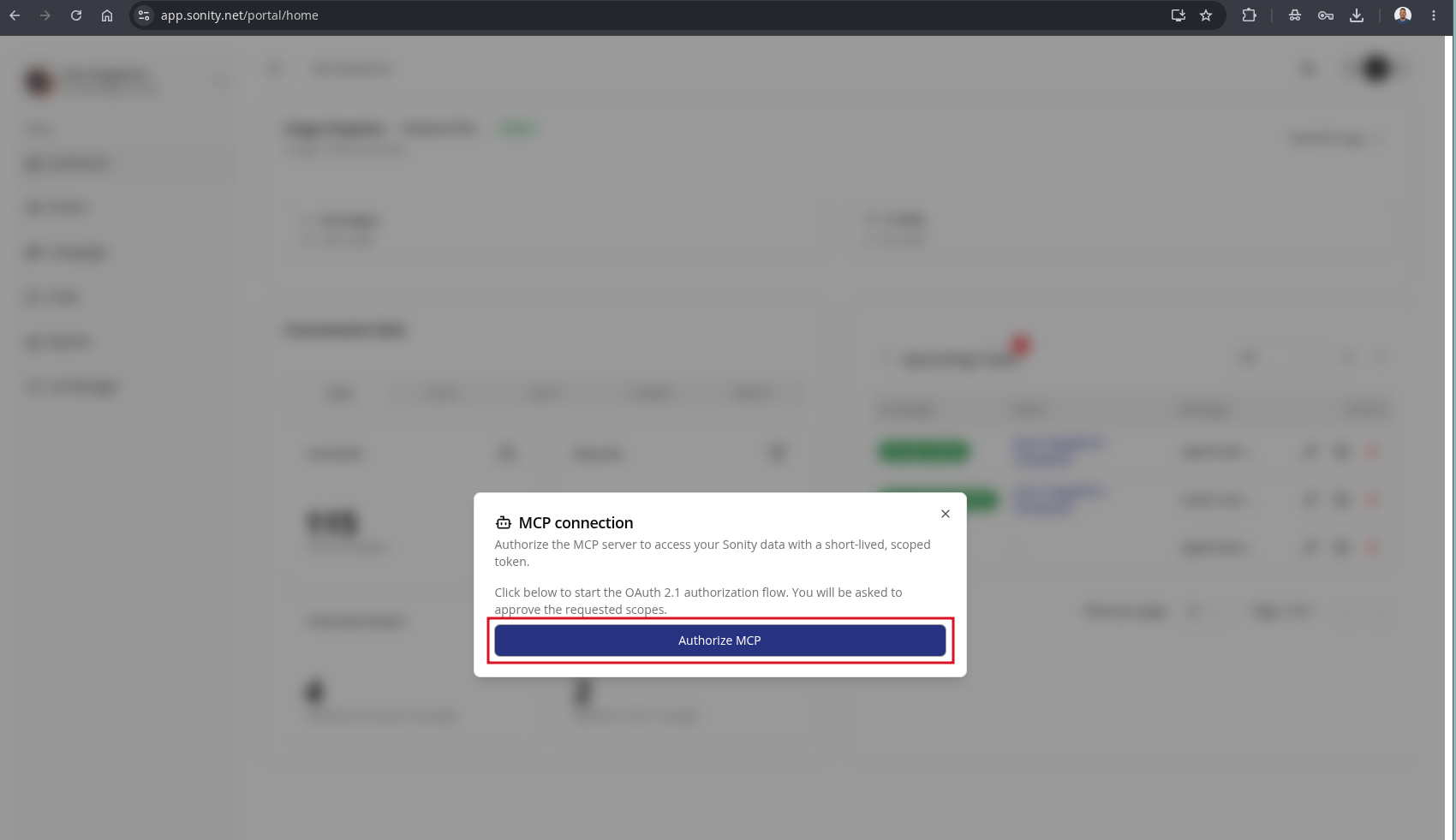
Step 4: Authorize MCP Stage 2
When a modal opens click "Authorize MCP":
Step 5: Copy MCP URL
When you click "Authorize MCP" you will redirect to give the AI scopes then once you are done you should see an option for copying header and MCP URL Copy URL and switch back to the Claude Web or Desktop tab.
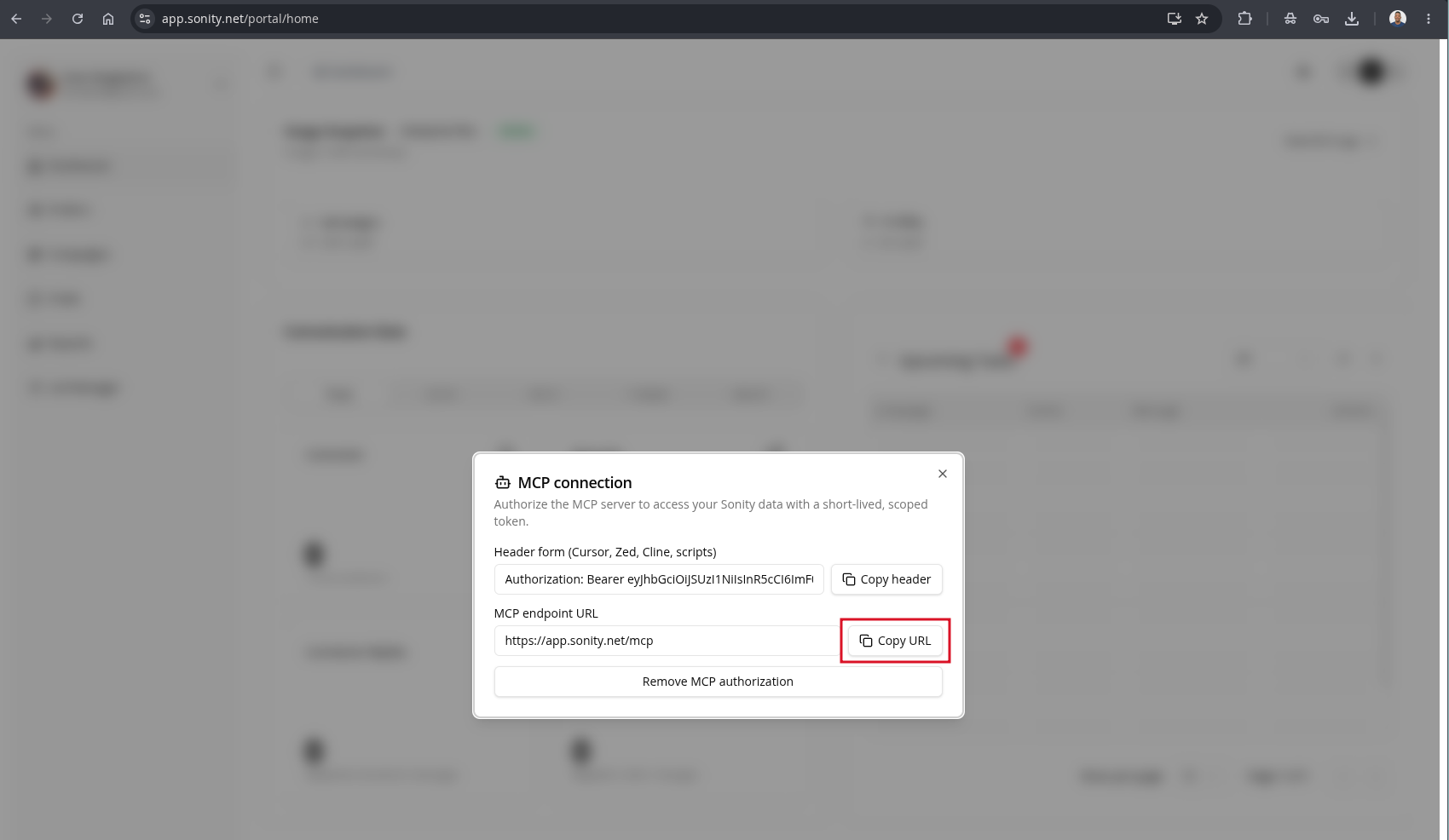
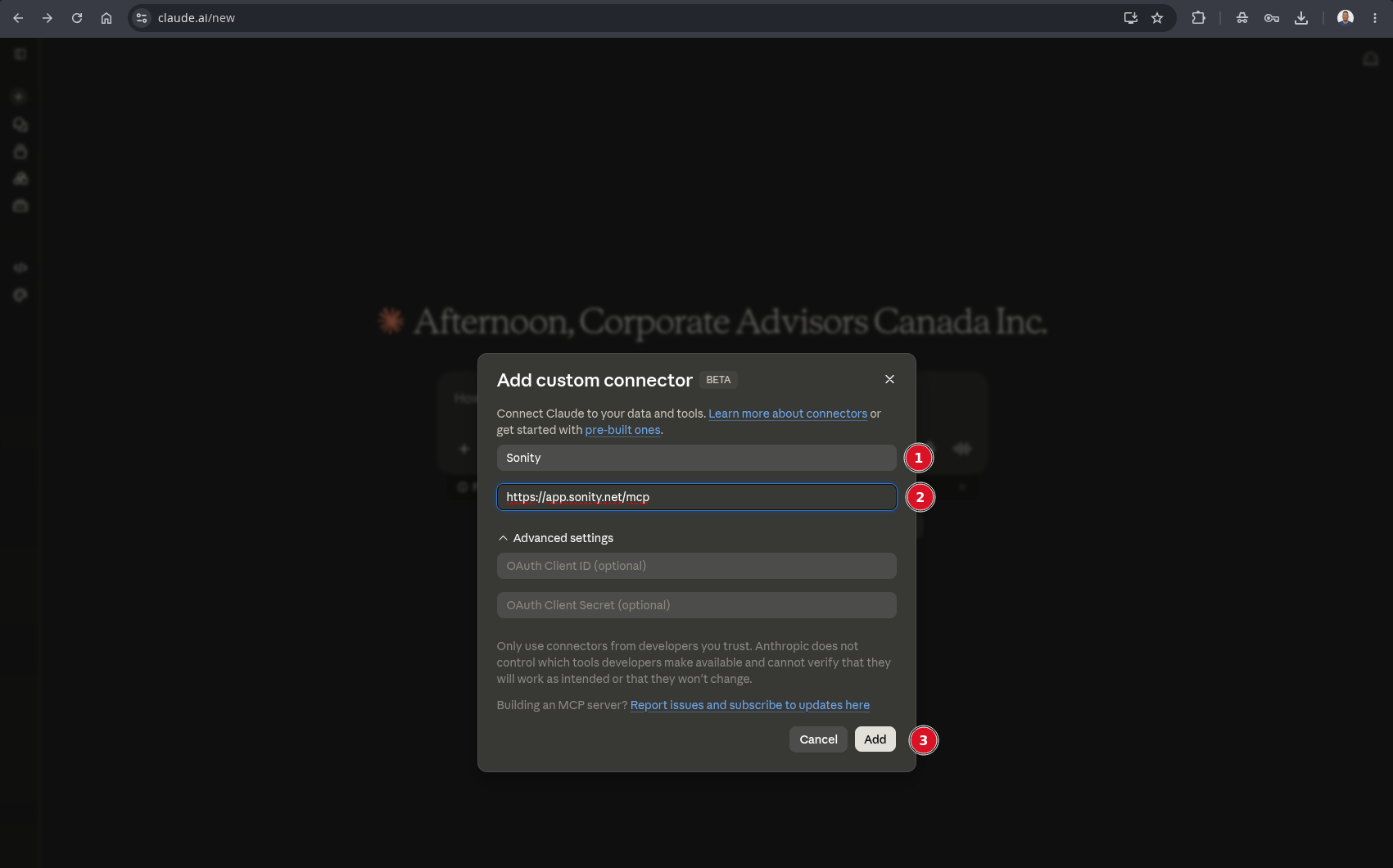
Step 6: Paste MCP URL
In the Dialog that opens form Step 2, set the name to Sonity and paste the MCP URL into the url field:
Click "Add"
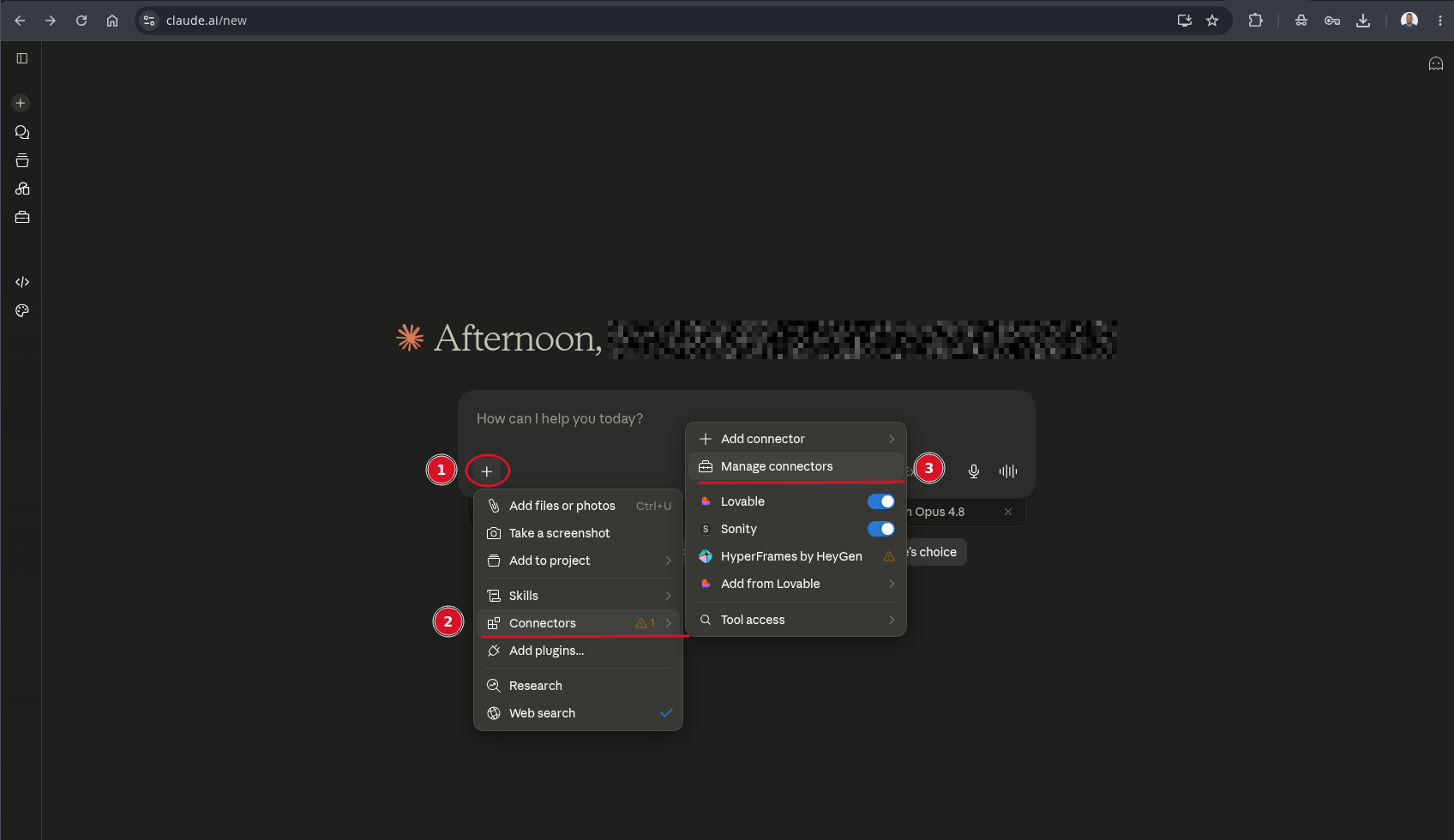
If you click the "+" button and click "Connectors", you should see the Sonity connector listed:
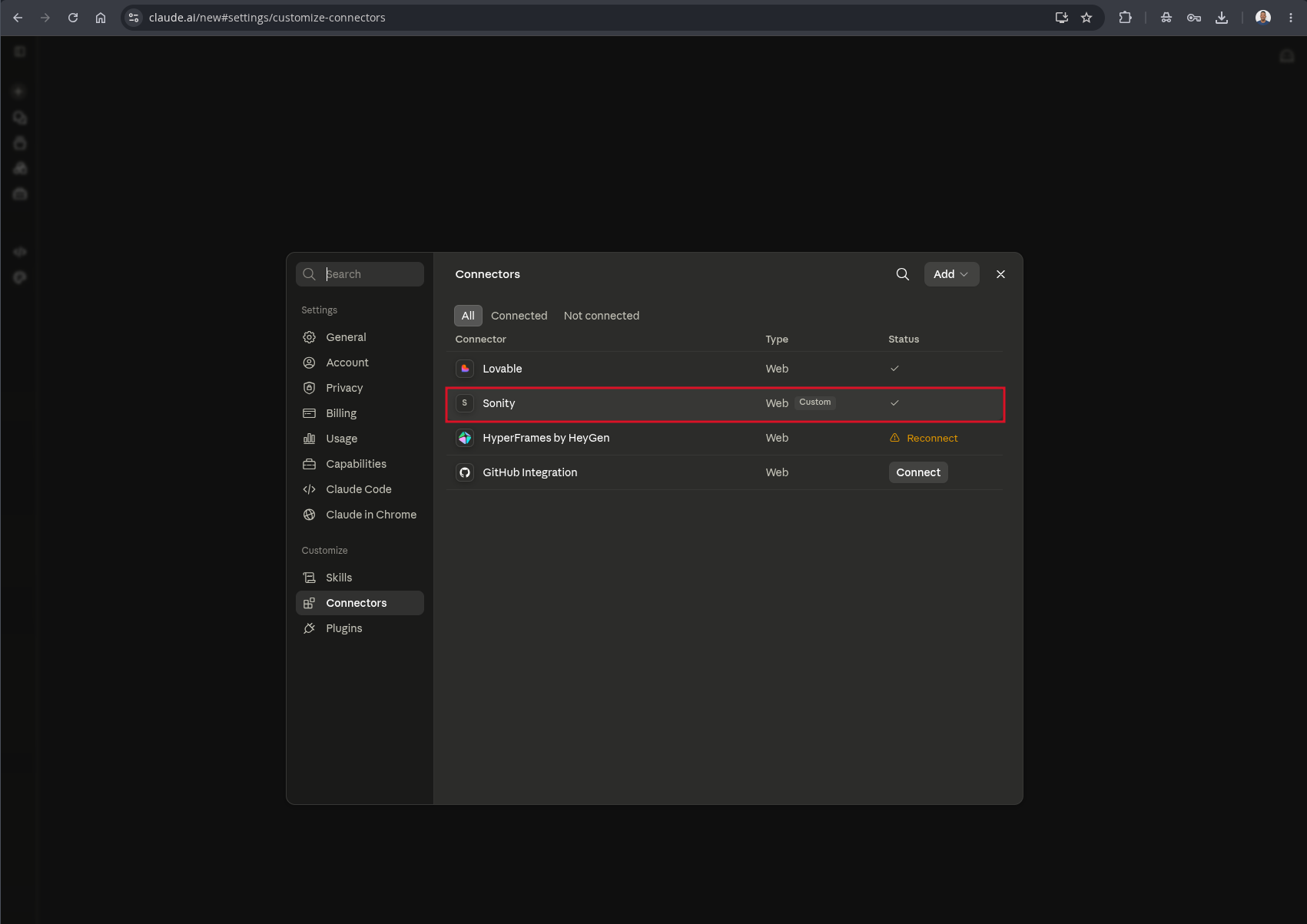
Alternatively if you open settings then click "Connectors", you should see the Sonity connector listed:
Step 7: Enjoy!
Once you have completed the above steps you should be able to use Sonity tools with Claude Desktop.
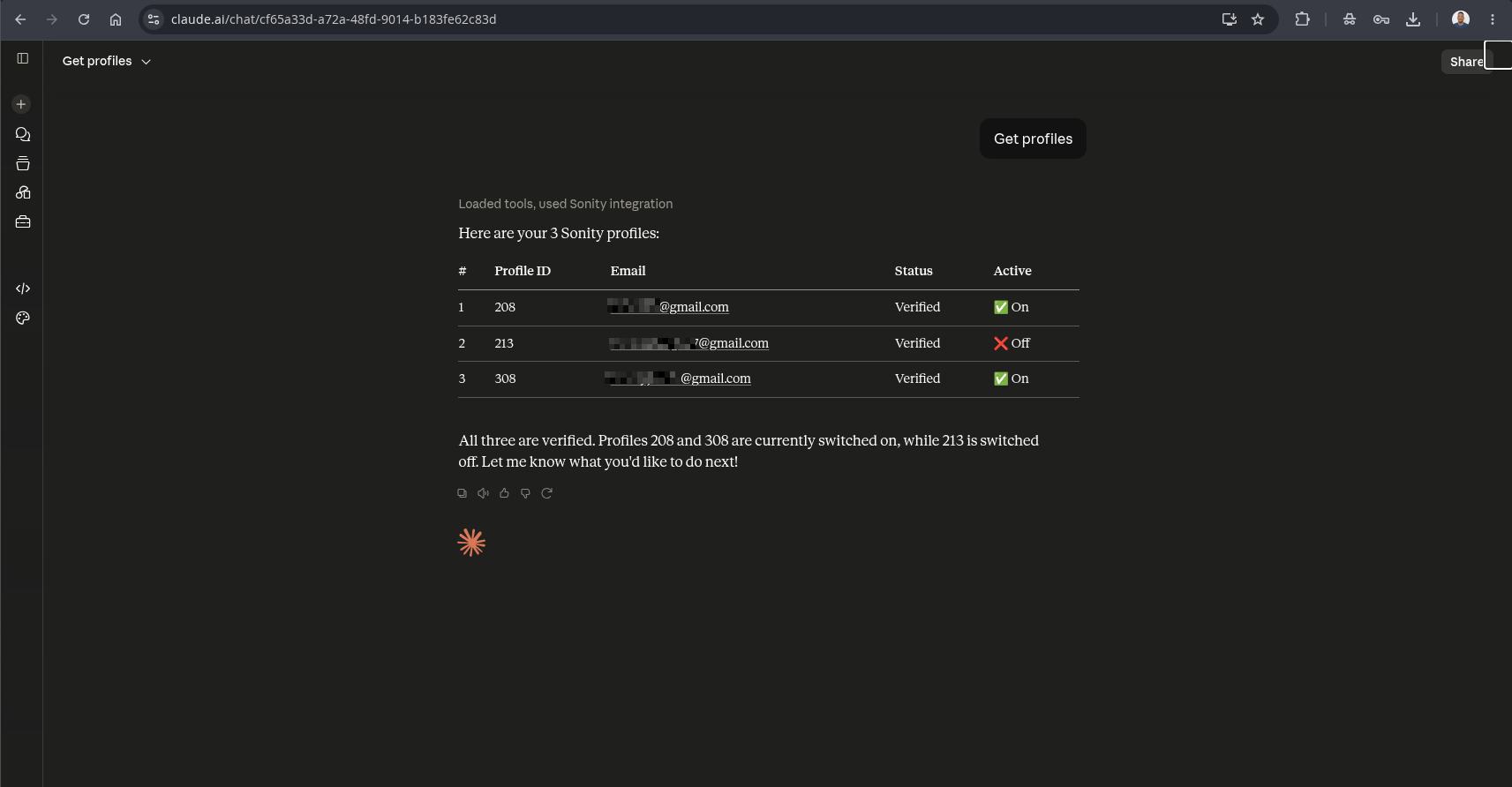
For more information about the tools available, see the tools page here. Note that when we add new tools we will update this page.
Manual method
Edit claude_desktop_config.json (on macOS: ~/Library/Application Support/Claude/claude_desktop_config.json):
{
  "mcpServers": {
    "sonity": {
      "type": "http",
      "url": "https://app.sonity.net/mcp",
      "headers": {
        "Authorization": "Bearer PASTE_YOUR_TOKEN_HERE"
      }
    }
  }
}
Restart Claude Desktop. The Sonity tools will appear under the tools menu.
Cursor
Edit ~/.cursor/mcp.json:
{
  "mcpServers": {
    "sonity": {
      "url": "https://app.sonity.net/mcp",
      "headers": {
        "Authorization": "Bearer PASTE_YOUR_TOKEN_HERE"
      }
    }
  }
}
Restart Cursor. In the chat panel, switch the model selector to an agent mode that supports MCP.
Zed
Edit ~/.config/zed/settings.json and add the Sonity server under extension.context_servers:
{
  "extension": {
    "context_servers": {
      "sonity": {
        "command": {
          "transport": {
            "kind": "http",
            "url": "https://app.sonity.net/mcp",
            "headers": {
              "Authorization": "Bearer PASTE_YOUR_TOKEN_HERE"
            }
          }
        }
      }
    }
  }
}
Restart Zed. The Sonity tools will be available in the Assistant panel.
Cline
Edit cline_mcp_settings.json (use the Cline extension's "MCP Servers" → "Edit JSON" command):
{
  "mcpServers": {
    "sonity": {
      "url": "https://app.sonity.net/mcp",
      "headers": {
        "Authorization": "Bearer PASTE_YOUR_TOKEN_HERE"
      },
      "disabled": false,
      "alwaysAllow": []
    }
  }
}
Reload the Cline panel. The Sonity server should show as connected.
Raw cURL / scripting
The MCP HTTP transport speaks JSON-RPC 2.0 over POST /mcp. A minimal session is two requests: initialize, then one or more tools/call.
1. Initialize the session
curl -X POST https://app.sonity.net/mcp \
  -H "Authorization: Bearer PASTE_YOUR_TOKEN_HERE" \
  -H "Content-Type: application/json" \
  -H "Accept: application/json, text/event-stream" \
  -d '{
    "jsonrpc": "2.0",
    "id": 1,
    "method": "initialize",
    "params": {
      "protocolVersion": "2025-06-18",
      "capabilities": {},
      "clientInfo": { "name": "curl", "version": "1.0" }
    }
  }'
2. Call a tool — list your profiles
curl -X POST https://app.sonity.net/mcp \
  -H "Authorization: Bearer PASTE_YOUR_TOKEN_HERE" \
  -H "Content-Type: application/json" \
  -H "Accept: application/json, text/event-stream" \
  -d '{
    "jsonrpc": "2.0",
    "id": 2,
    "method": "tools/call",
    "params": {
      "name": "profiles",
      "arguments": {}
    }
  }'
The response is a JSON-RPC result whose result.content[0].text is a JSON string with the profiles. Grab the id of the profile you want to act as — that's your sonity_profile_id for every other tool.
For anything beyond a quick test, use the official @modelcontextprotocol/sdk instead of raw cURL. It handles session lifecycle, retries, and SSE streaming for you.
Verify it works
Whichever client you chose, the simplest smoke test is to ask the AI:
"List my Sonity profiles."
The AI should call the profiles tool and return a list with at least one profile. If you see an error, jump to Troubleshooting.
Where to next
- MCP tools — the full tool reference.
- Troubleshooting — common connection errors.