Importing Contacts
Sonity also allows you to import contacts into campaigns and lists so you dont have to start from scratch. Import
Import the CSV
Step 1: Click the import button
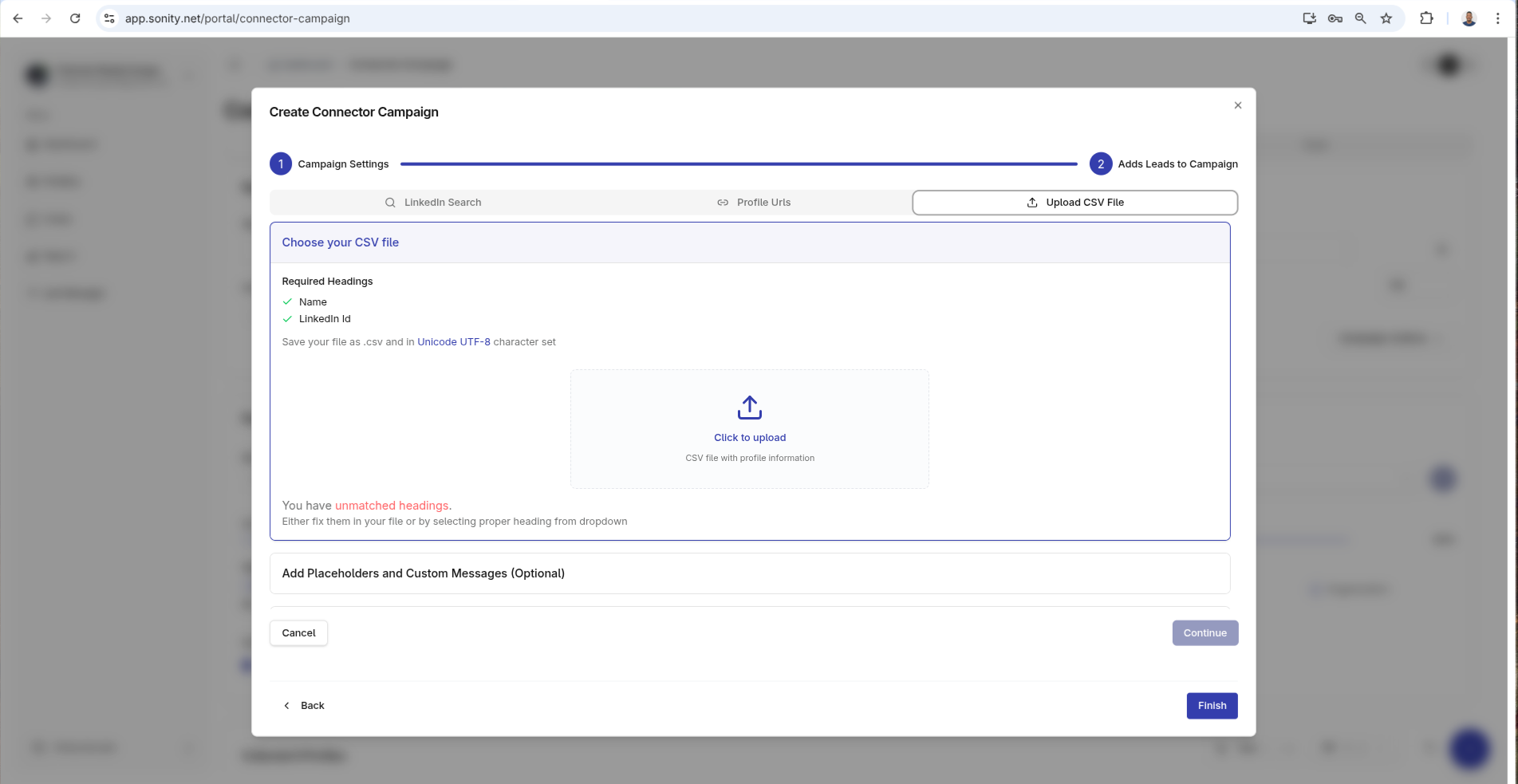
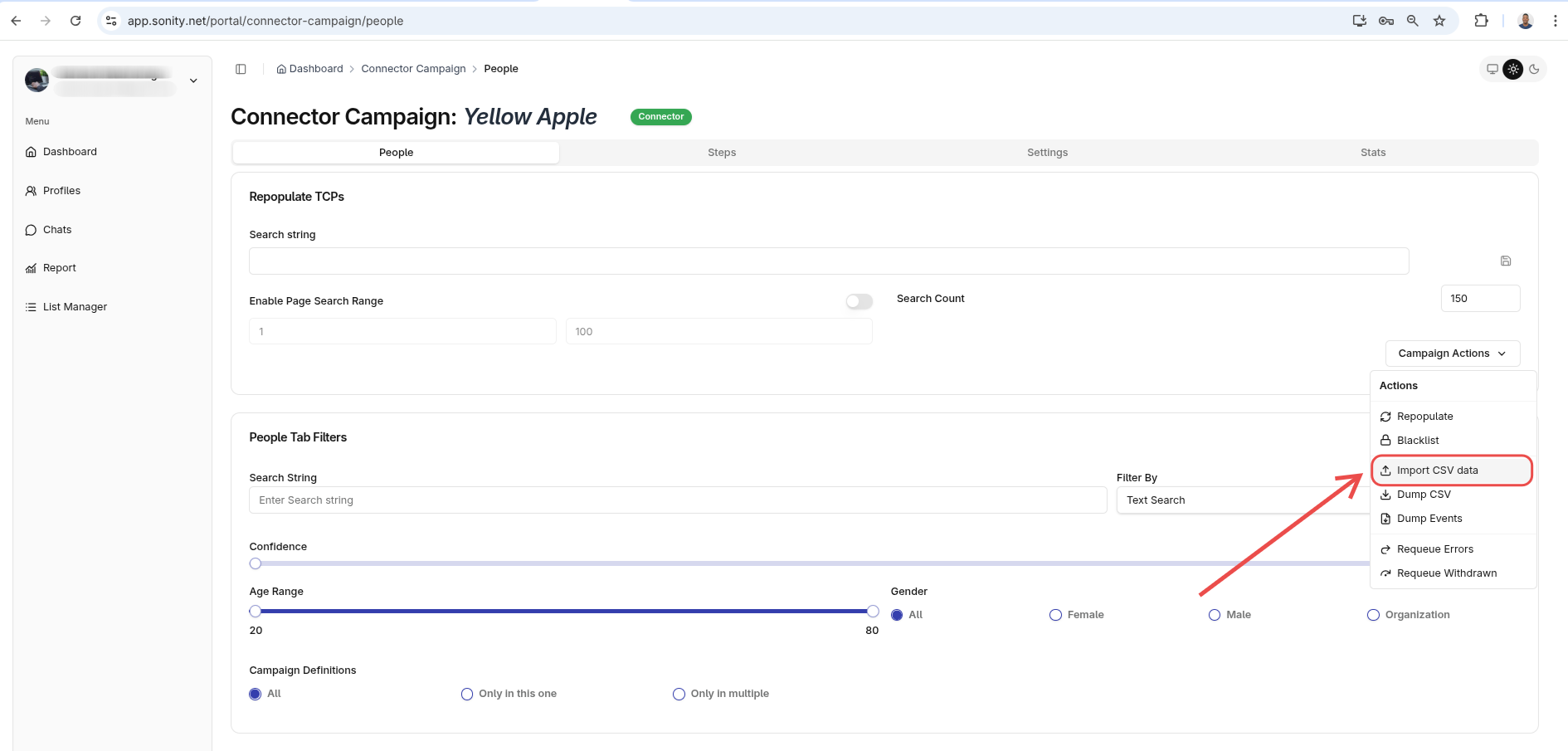
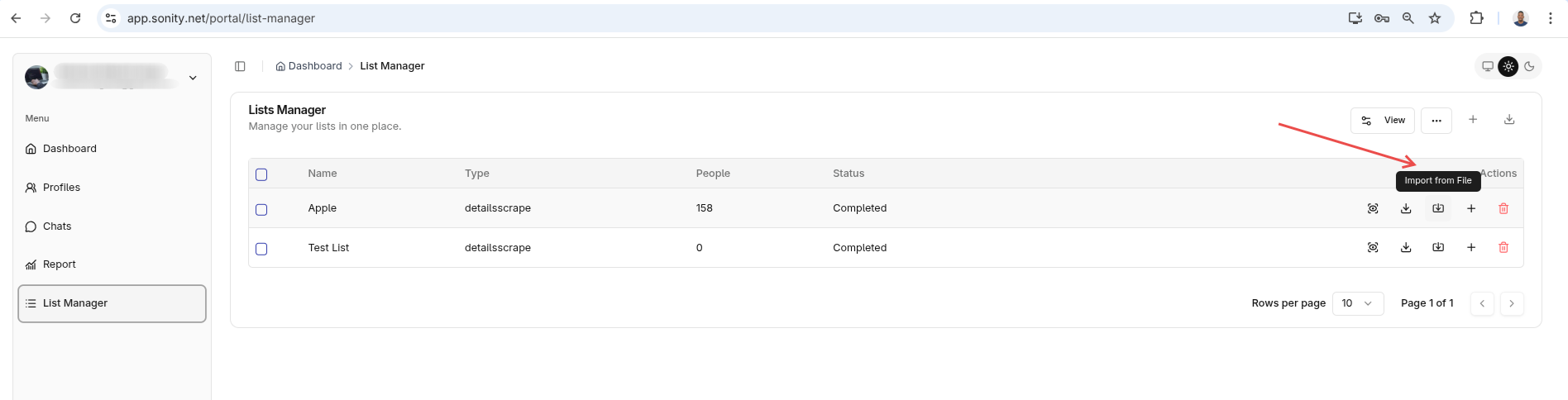
Contacts can be imported from many places
Create Campaing(Add contacts)
Campaign People Tab
List Manager
Step 2: Match headers and messages
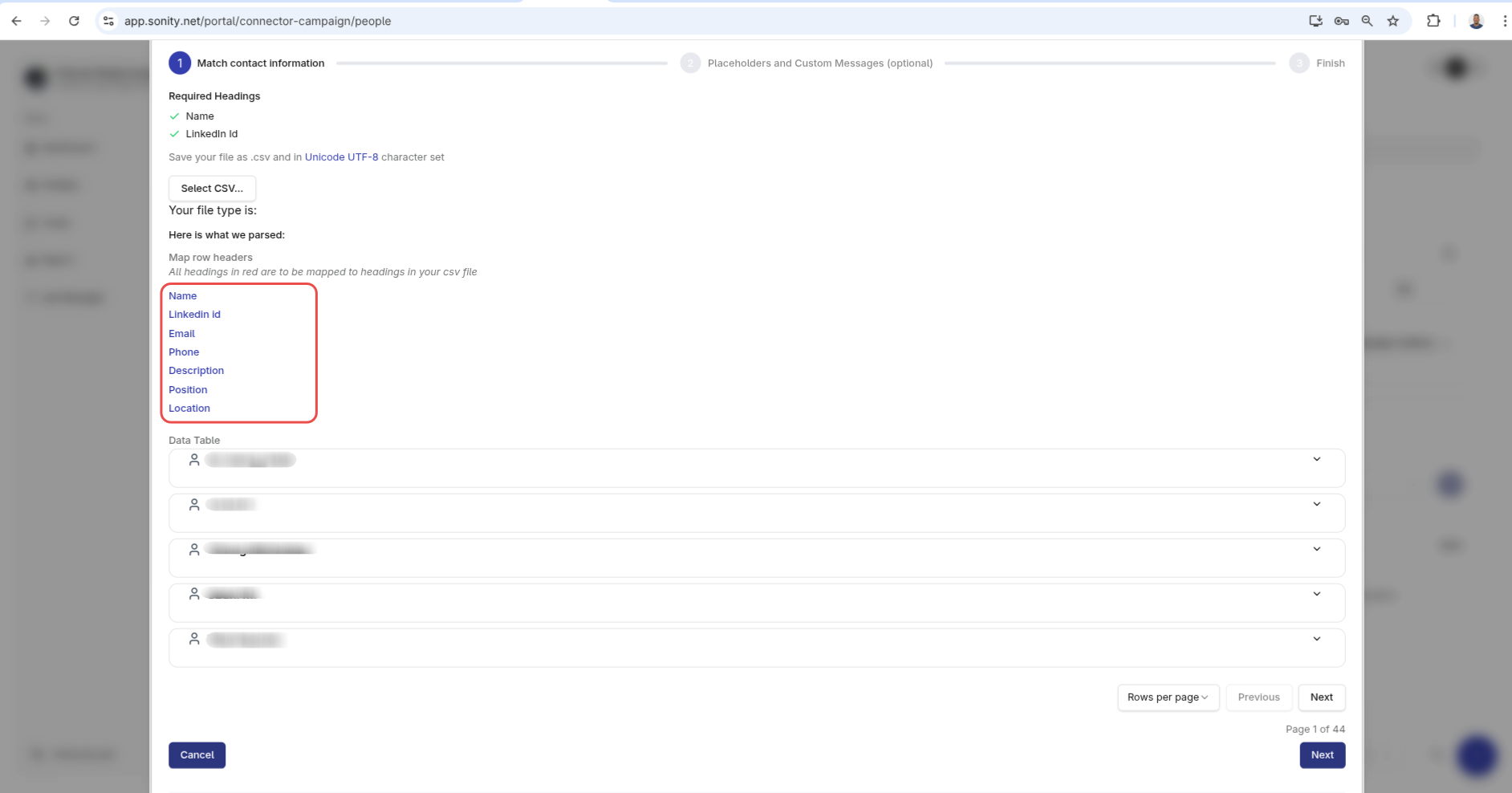
You get a dialog shown, from here click Select CSV
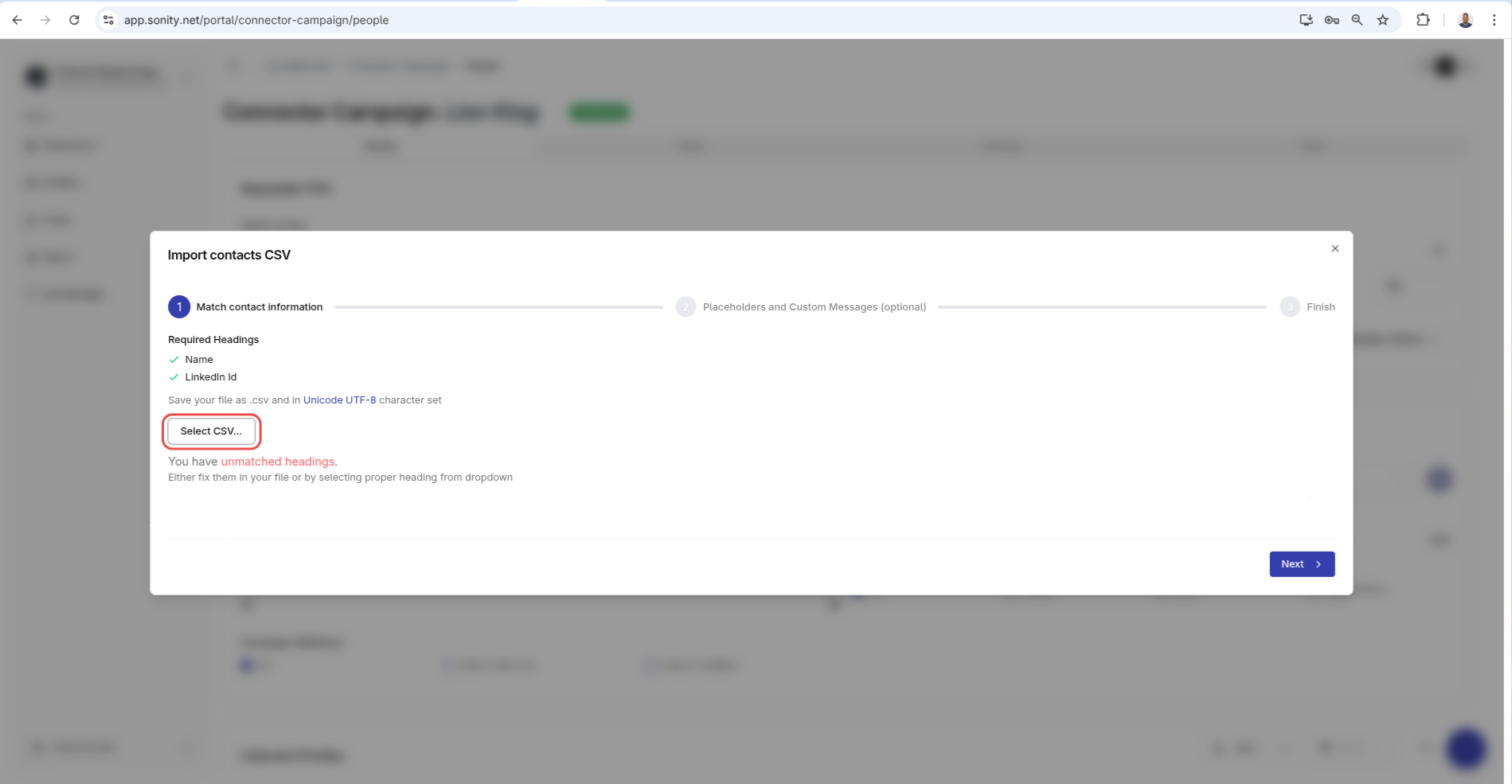
Select a CSV and match each of the headers then scroll down and click next
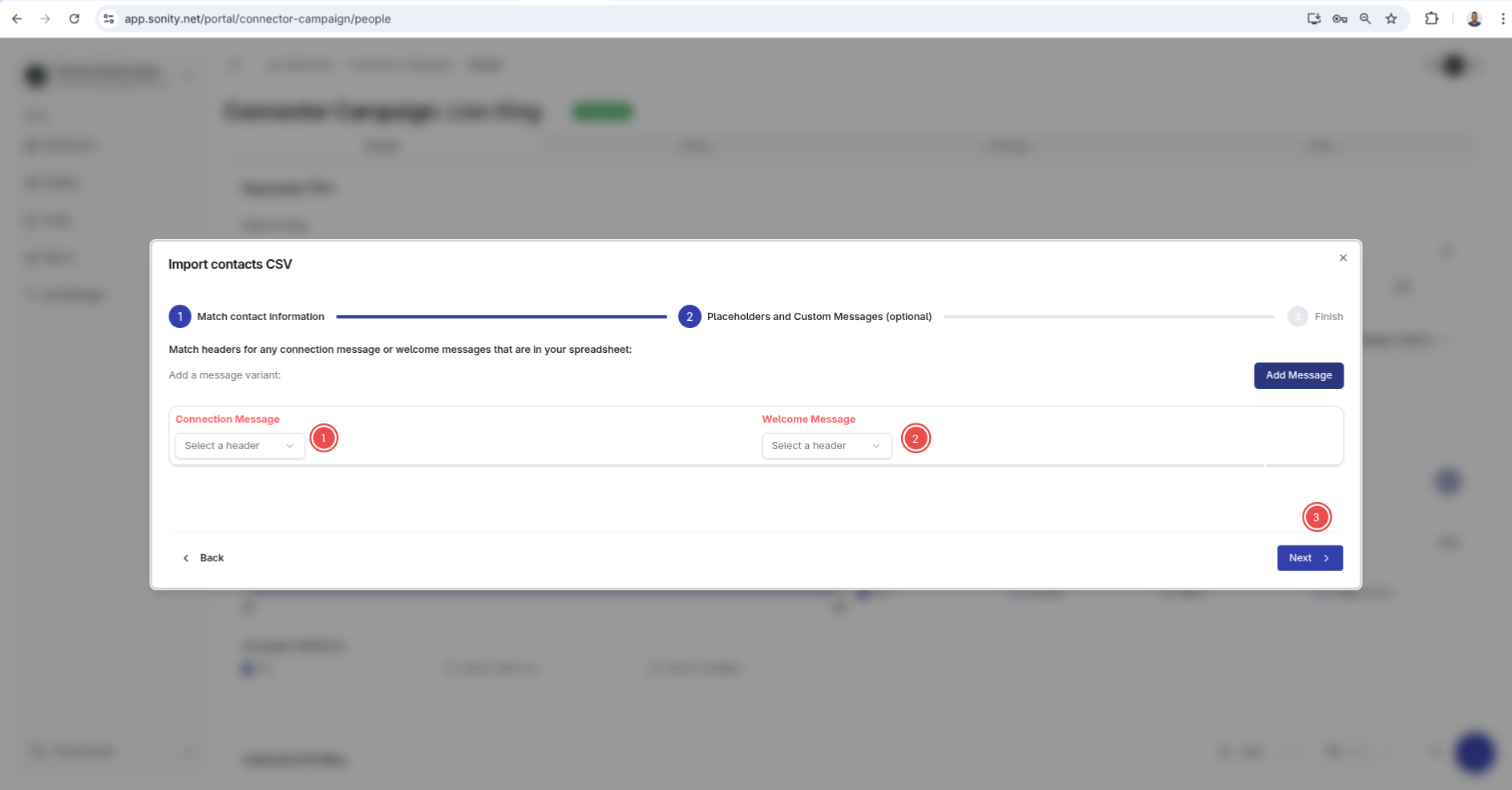
If you have Welcome and Connection messages in the file also match the headers and click Next
Step 3: Import Contacts
Finally import the contacts
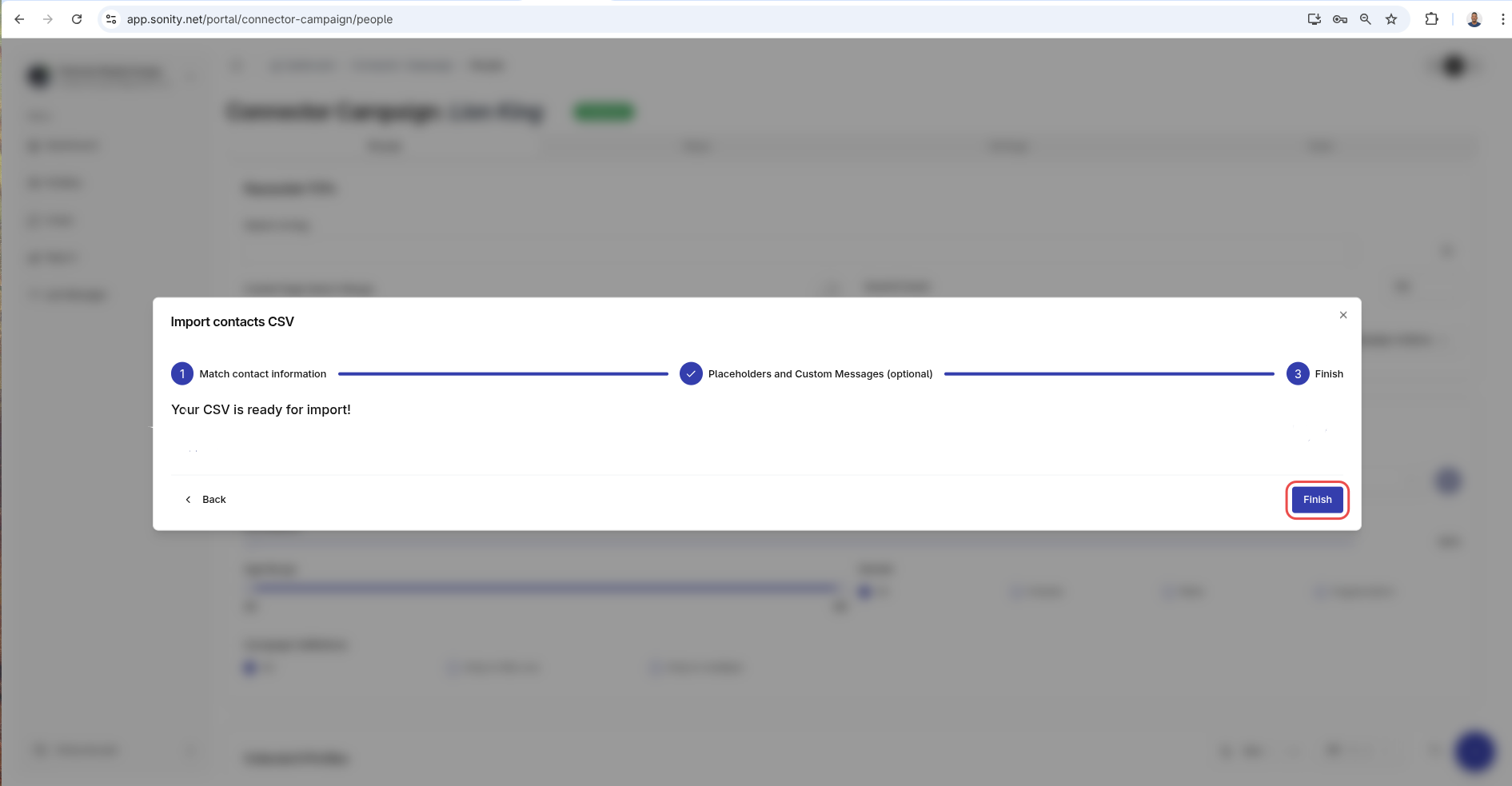
If the operation succeeds you should see contacts