Set up Two-Factor authentication
Before you add a profile, you need to make sure two-factor authentication (2FA) is set up on your LinkedIn account. This keeps your account secure and prevents automation from pausing when LinkedIn asks for a verification code.
Follow the steps below to enable 2FA on your LinkedIn account.
Step 1: Select your profile
From the Me icon in the top-right of LinkedIn, open your profile.

Step 2: Open Settings
Go to Settings & Privacy from your profile menu.
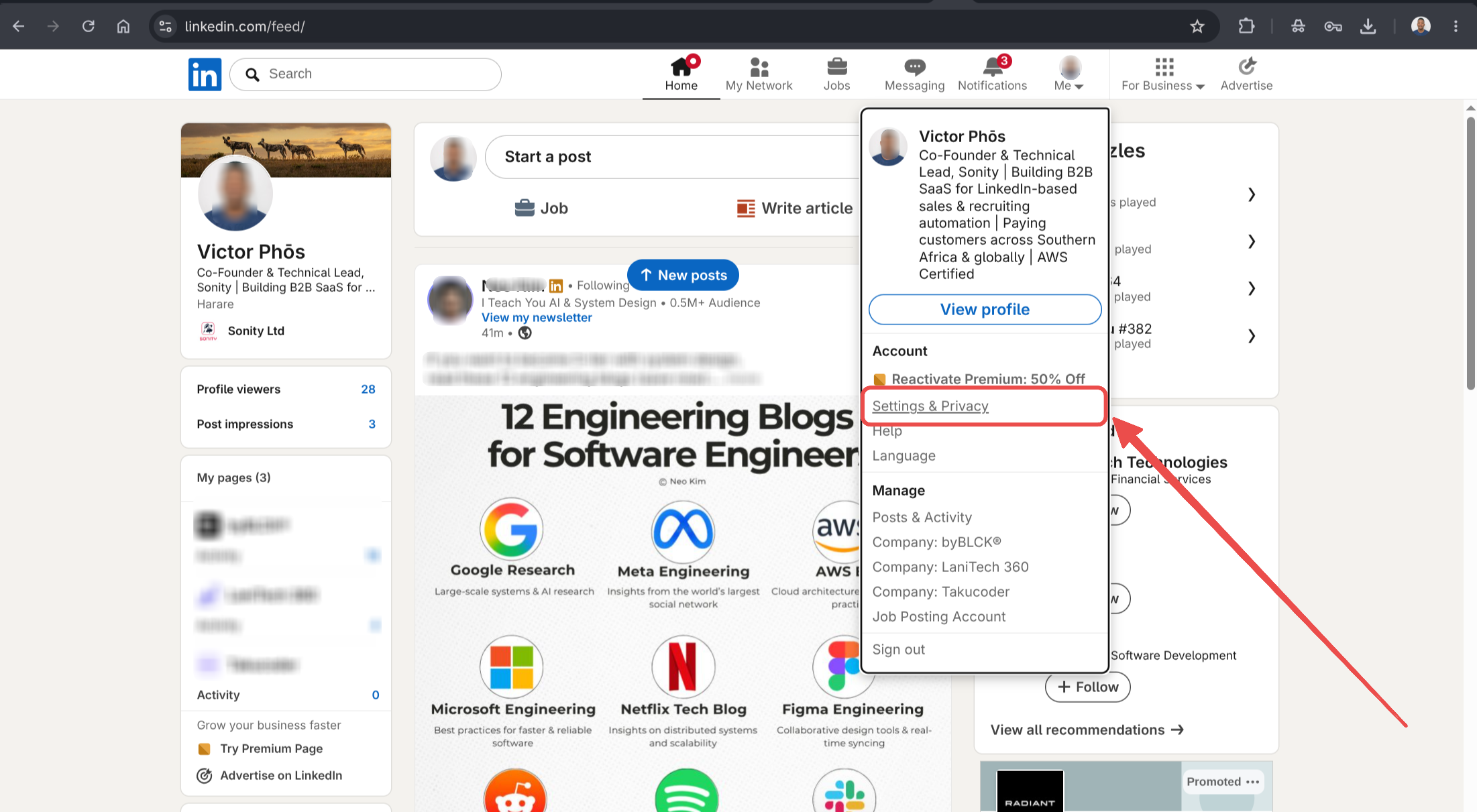
Step 3: Open Two-step verification
In the Sign in & security section, click Two-step verification.
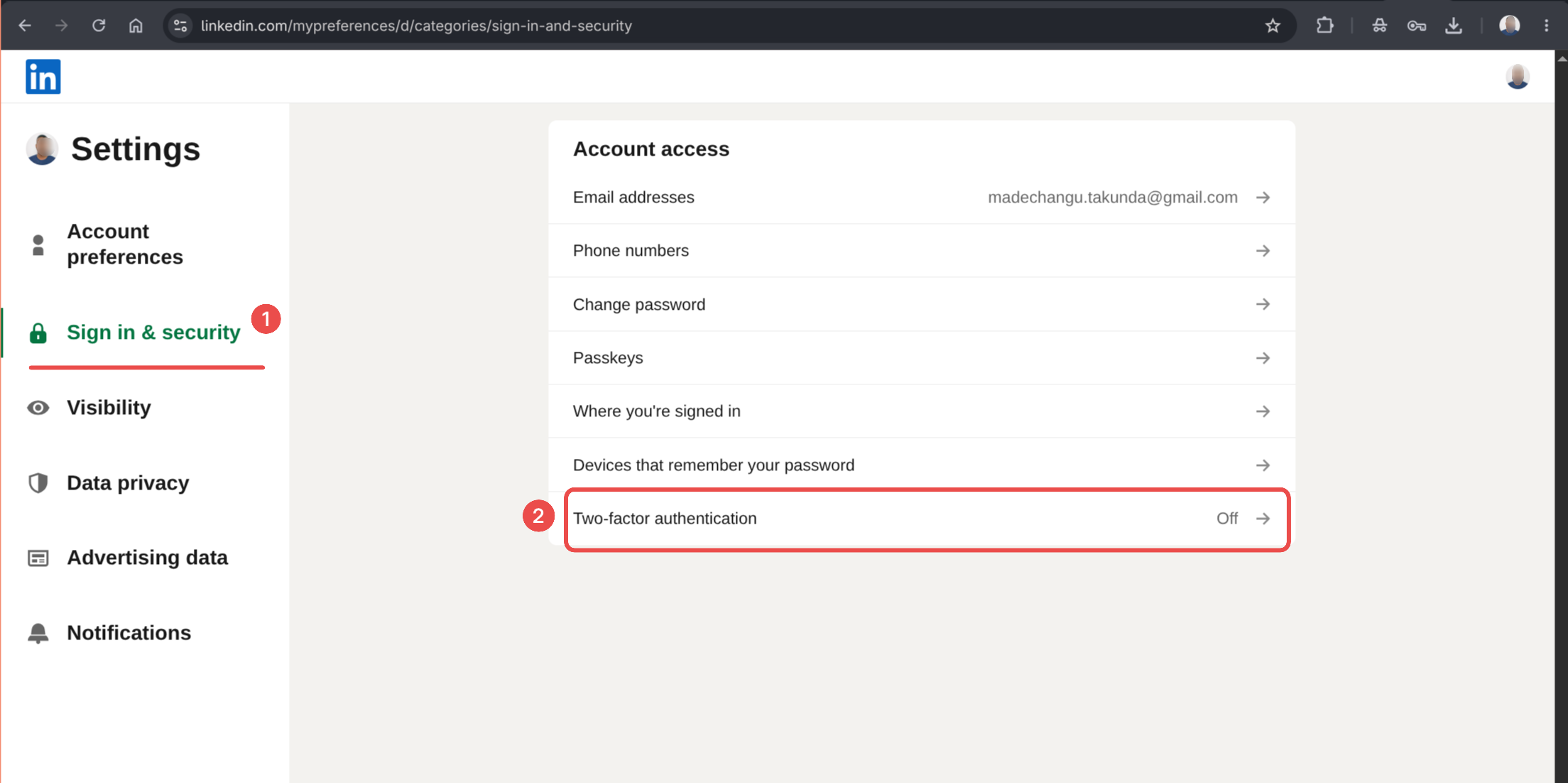
Step 4: Set up two-step verification
Click Turn on (or Set up) to enable two-step verification for your account.
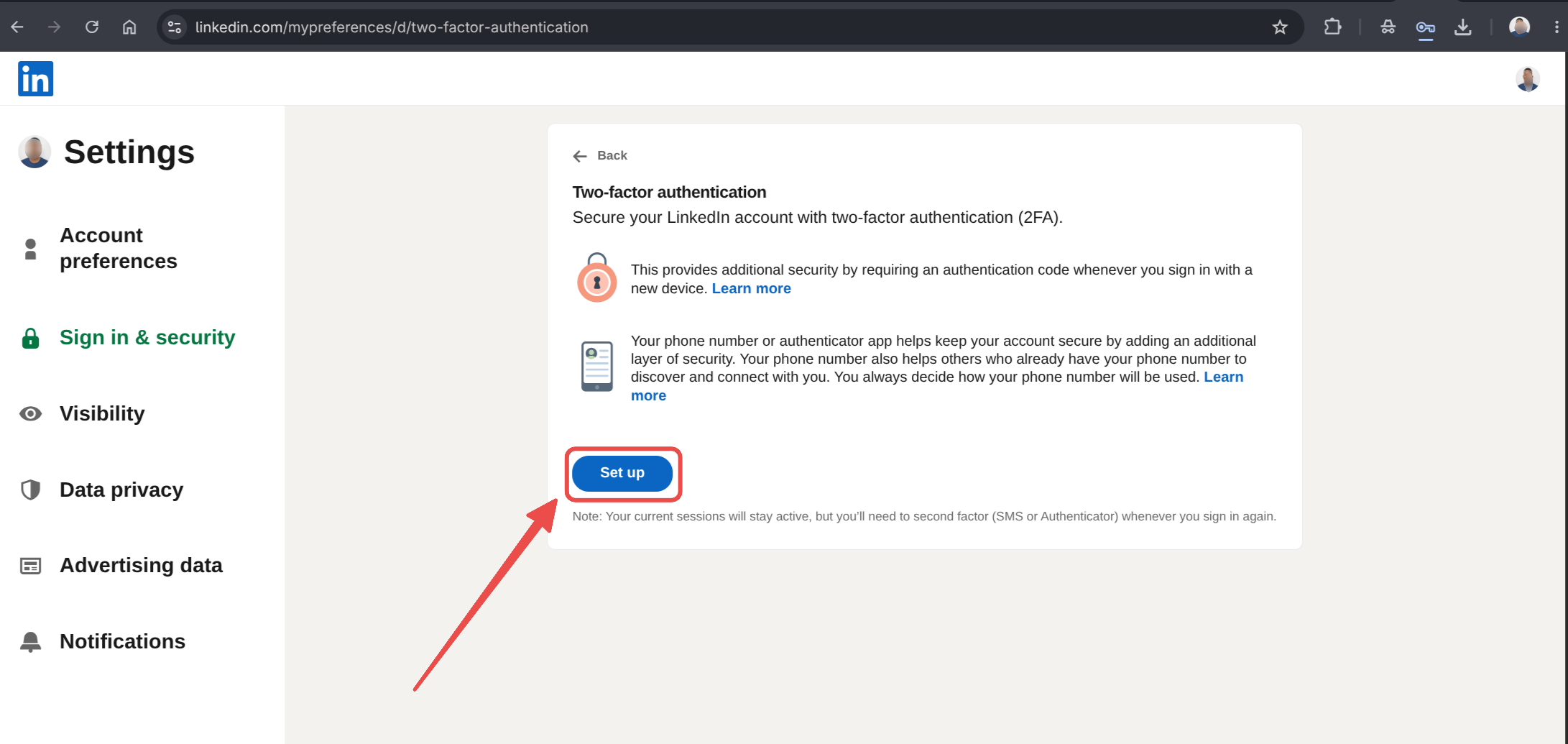
Verify your account
LinkedIn will ask you to verify your identity before you can continue.
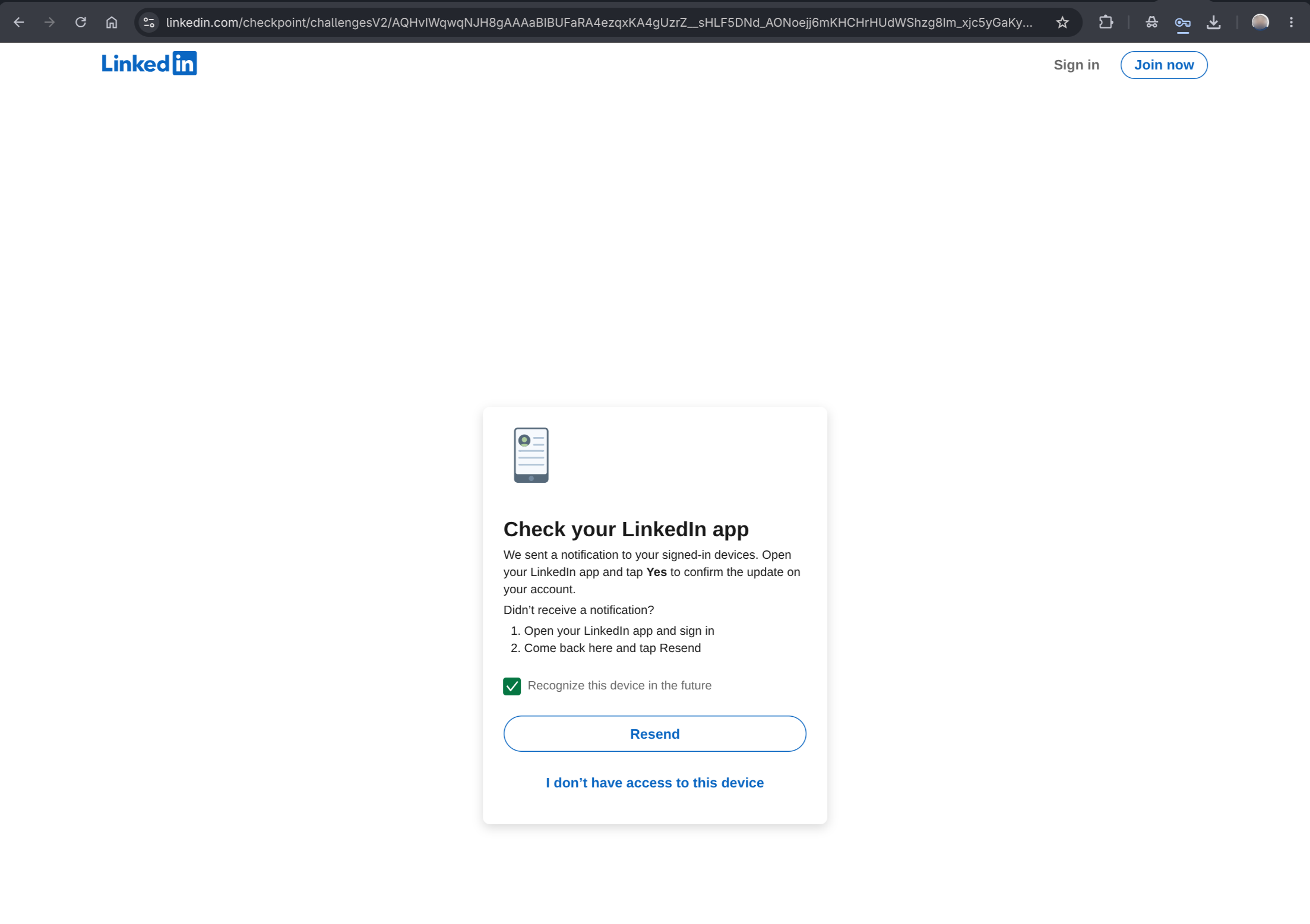
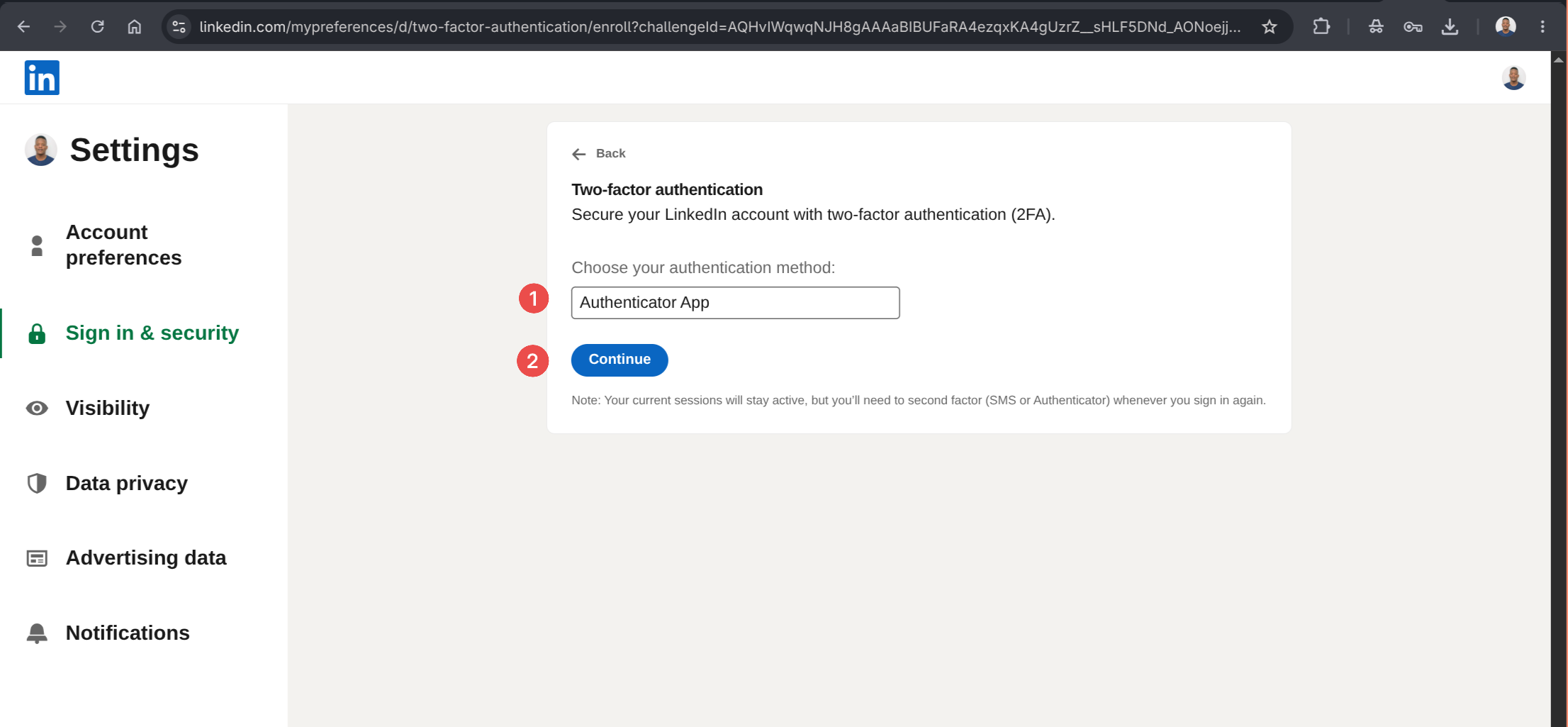
Step 5: Choose an authentication method
Select an authentication method, such as an authenticator app.
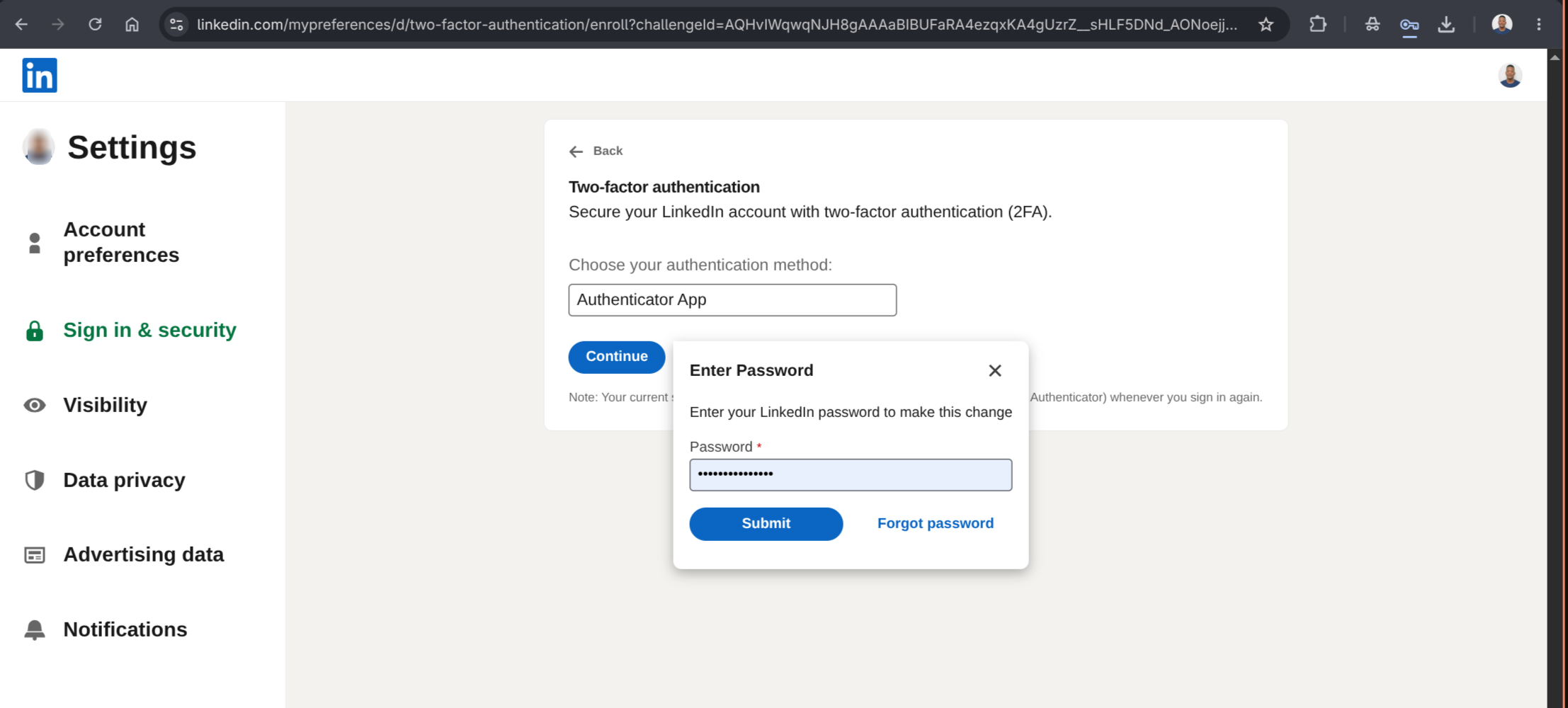
Step 6: Enter your password
Enter your LinkedIn password to continue.
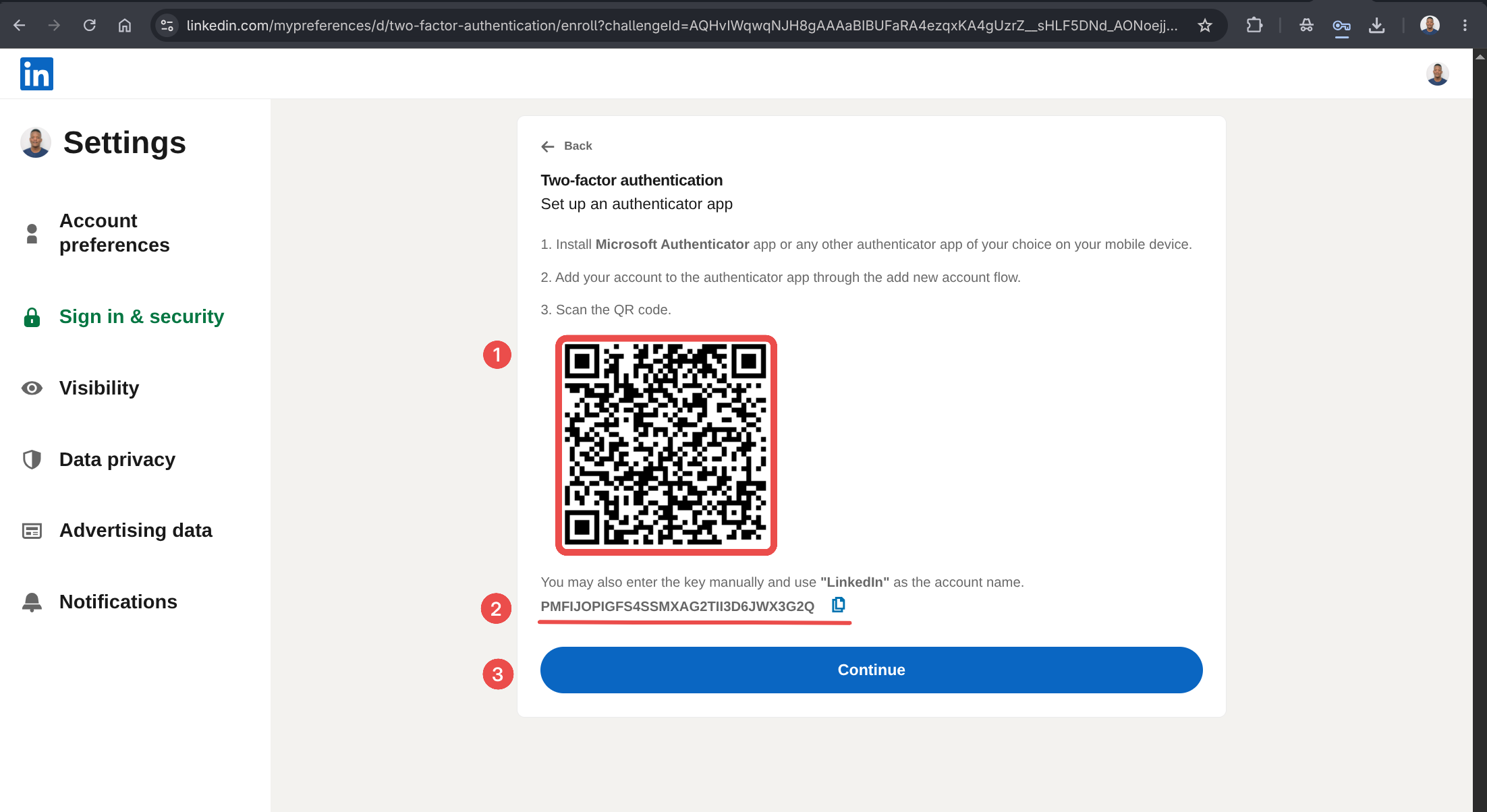
Step 7: Scan the code and save
Scan the QR code with your authenticator app and save your backup settings.
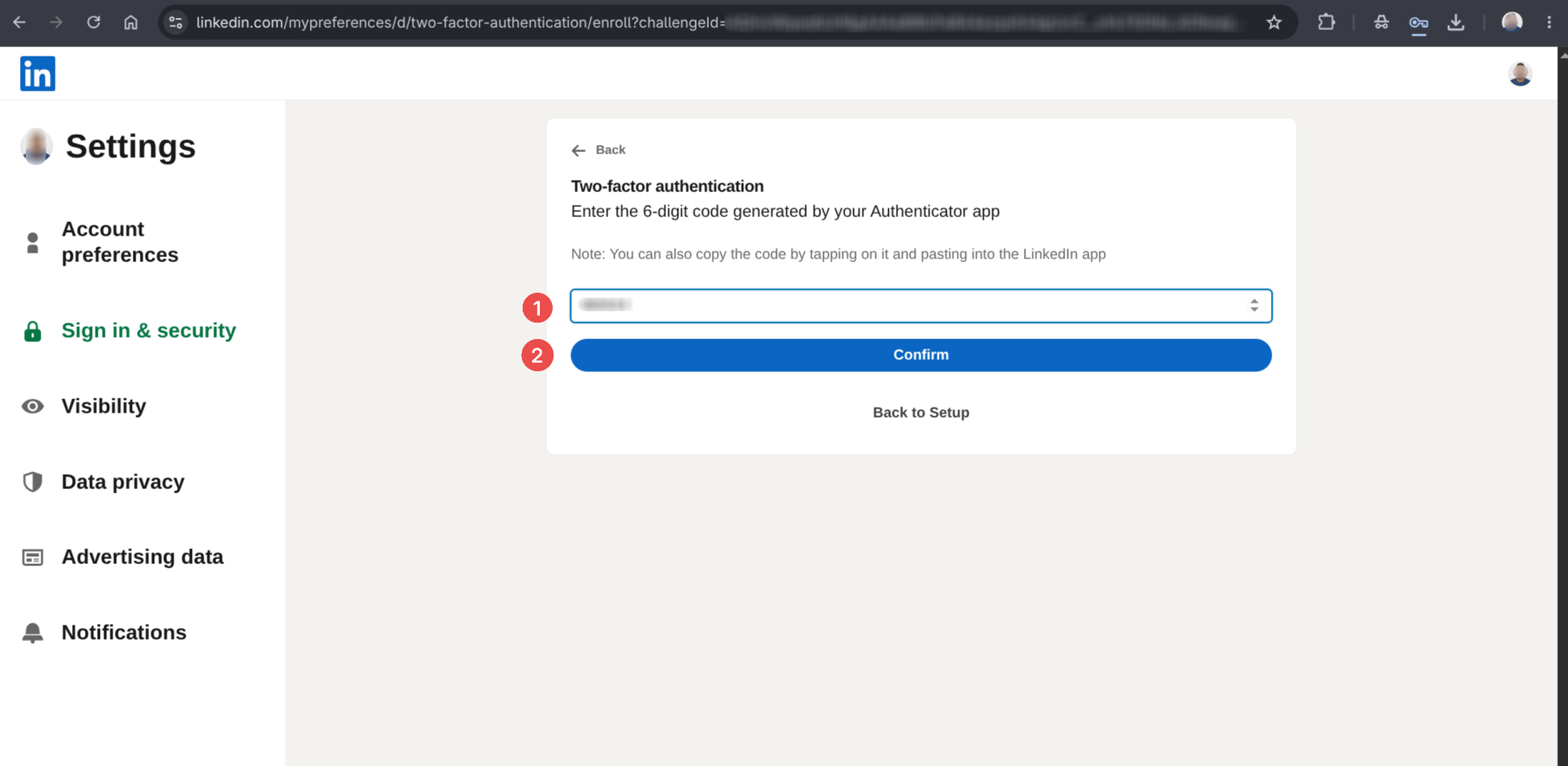
Step 8: Enter the code and continue
Enter the six-digit code from your authenticator app and click Continue.
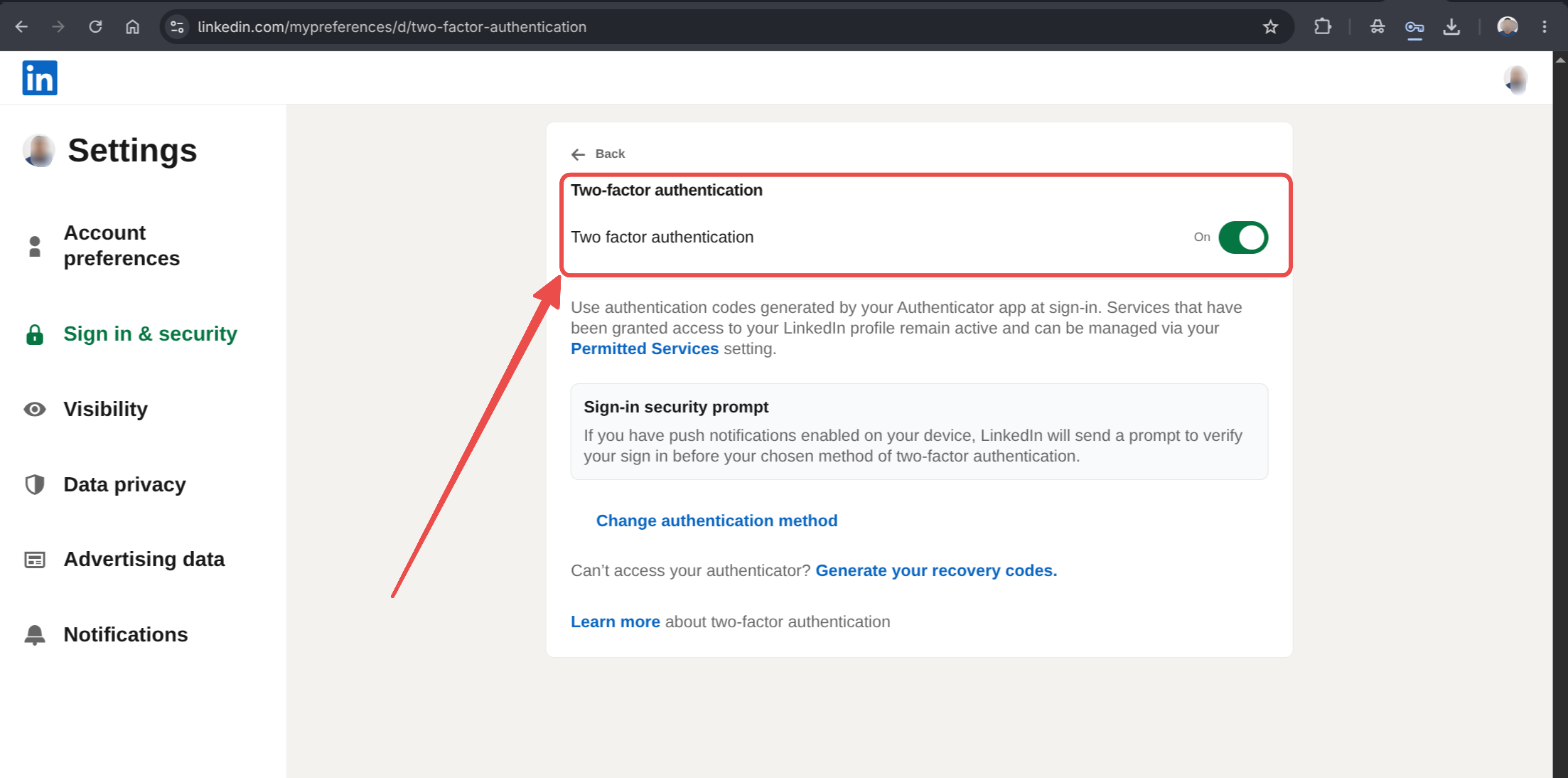
Step 9: Two-step verification is set up
Your two-step verification is now enabled on your LinkedIn account.
Next steps
Your account is now secured. The next step is to add a profile.