Tips and Tricks for Effective Automation
Estimated reading time: 5 minutes.
Start Slow and Gradual
Initiate with a slow and gradual automation approach to prevent triggering LinkedIn's spam filters. Mirror natural human behavior by incrementally increasing connection requests and messages.
Targeted Connection Requests
Send connection requests to individuals who align with your professional interests or industry. Personalize connection requests with a brief, relevant message to enhance the likelihood of acceptance.
Sonity also allows you to use AI to generate more personalized messages from the 'Variants' section.
Limit Daily Activities
Set reasonable limits on the number of connection requests, messages, and profile views per day. Mimic human behavior by spreading out your activities over time.
You can set or adjust your activity limits from the Profiles page.
Monitor and adjust
Regularly monitor the performance of your automation tool. Adjust your settings based on the responses and engagement you receive. If certain actions are not yielding positive results, consider tweaking your approach. You can monitor your campaign from the Reports section of your campaign.
For more information check this guide:
Reports section of your campaign.
Use Proxies
Consider using proxies to avoid detection. Proxies can help distribute activity across different IP addresses, reducing the risk of being flagged. In Sonity, proxies are set and managed on a profile basis. You can change proxies from the Profile settings.
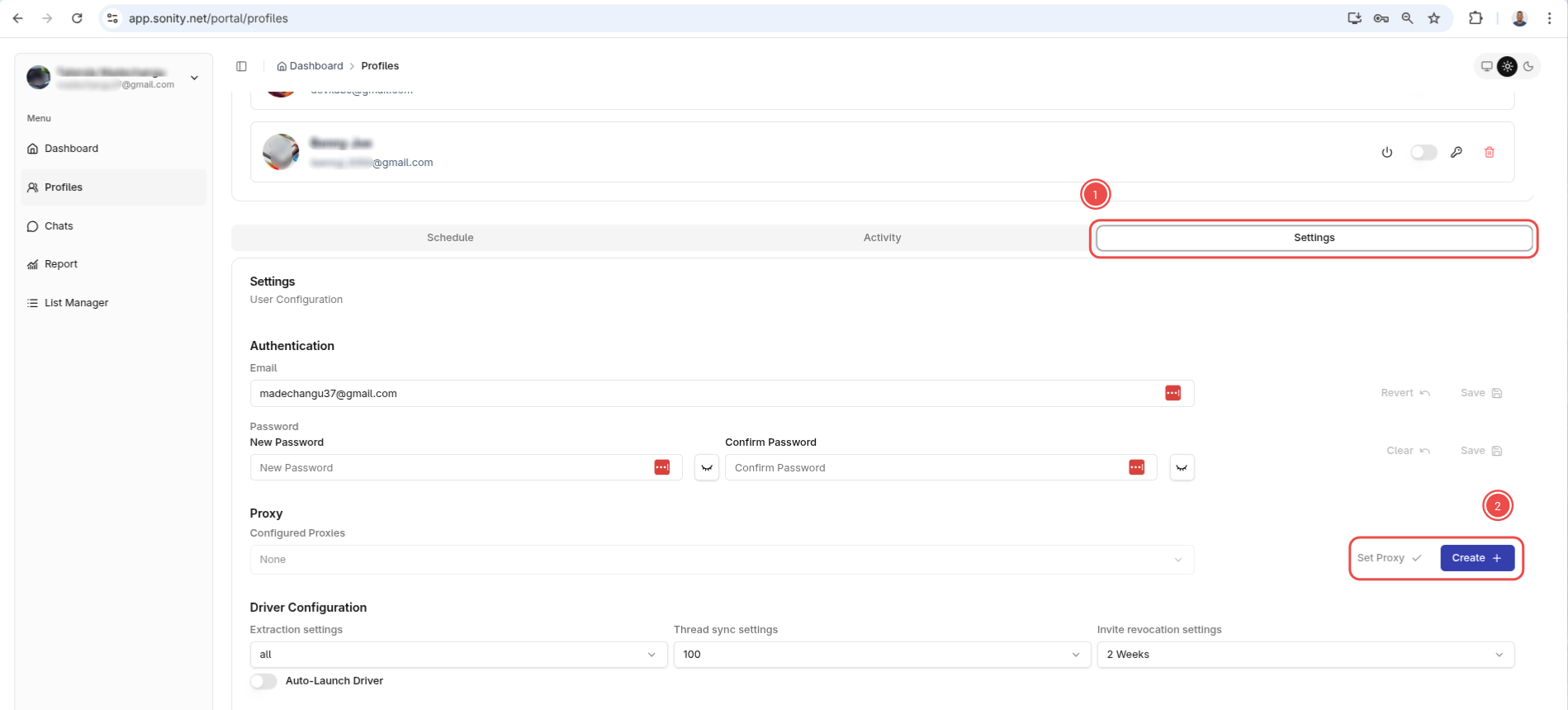
Under your profile settings, click on the Proxy dropdown to reveal the new proxy button. Click this to create a new proxy.
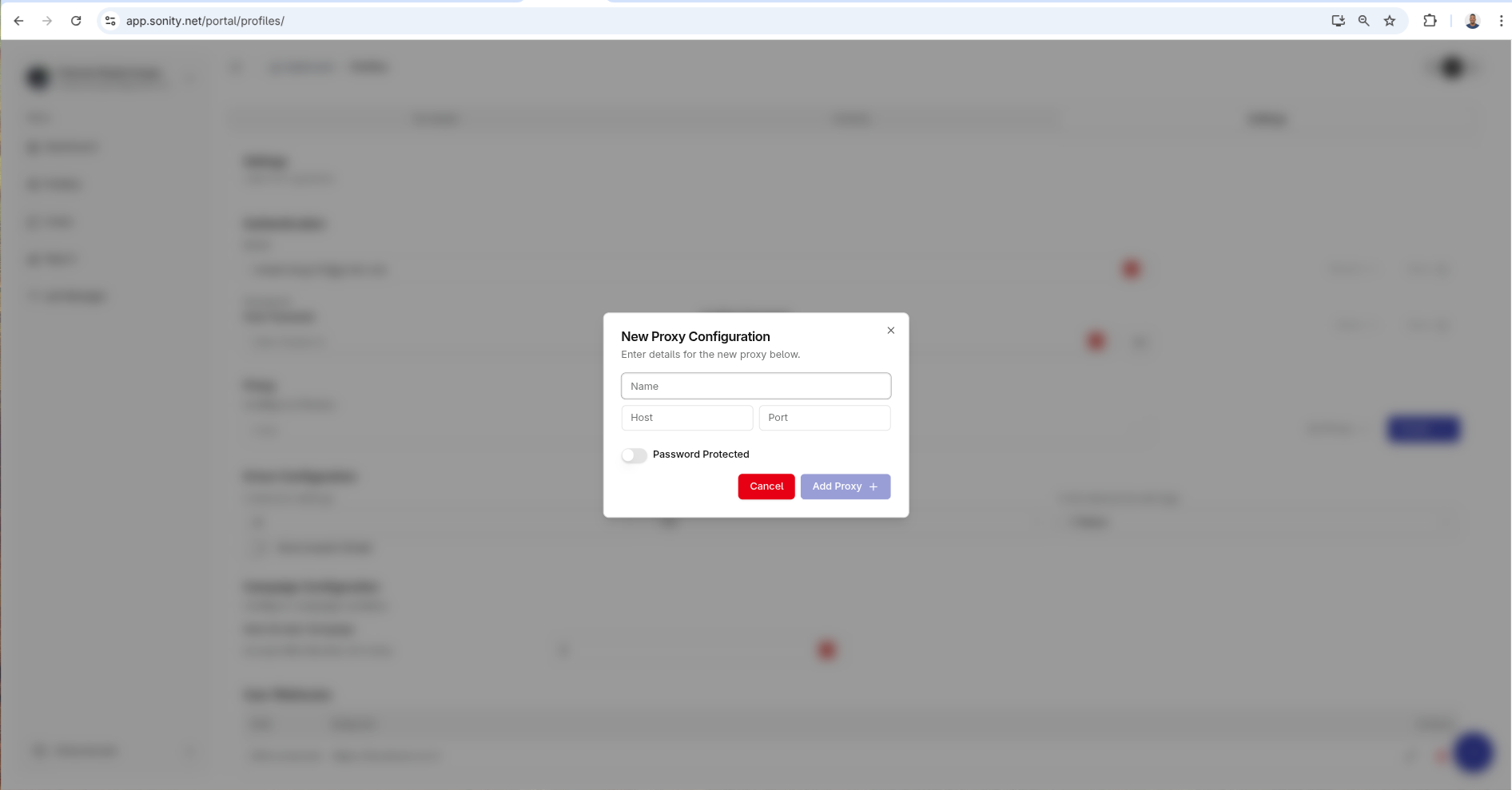
Give your proxy a name and specify the host (as an IP e.g. 127.0.0.1) and the port Sonity can use to connect to it. If your proxy is password protected, check the “Password protected” option and it will reveal another section you can use to enter the authentication details to connect to it.
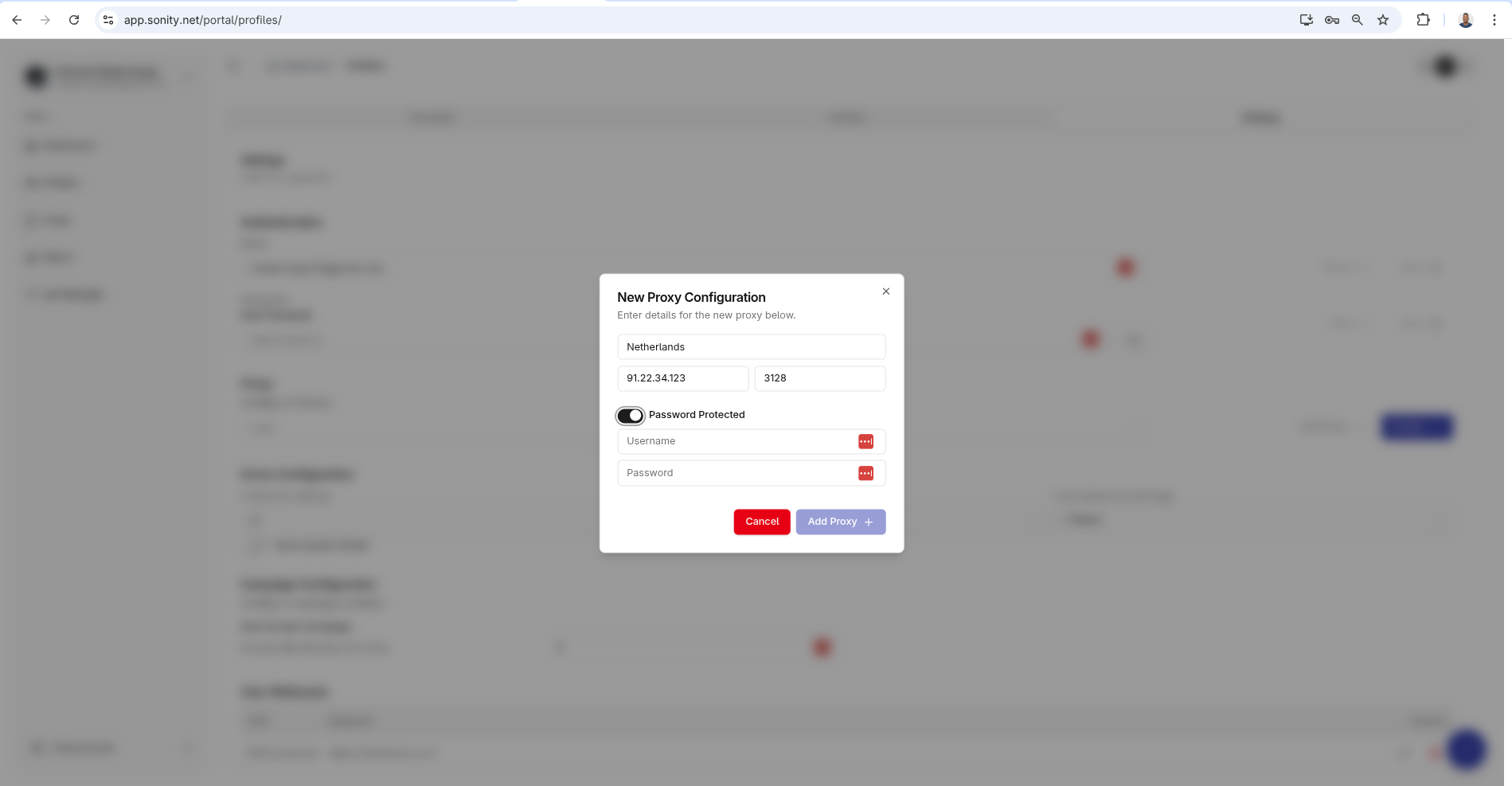
After this, you can simply click the “Add Proxy” button to confirm your proxy connection.