InMail Campaign
InMail campaigns allow you to send automated messages to prospects you are not connected to. It is similar to sending an unsolicited email, but with one key difference: it goes directly to the recipient's LinkedIn inbox.
You must upgrade to a Premium account to use InMail messages. You can’t message a member if they’ve chosen not to receive InMail messages in their message preferences settings.
You’re allotted a specific number of InMail message credits based on your subscription type. You can find the number of InMail message credits you have from your My Premium page.
How to create an InMail Campaign
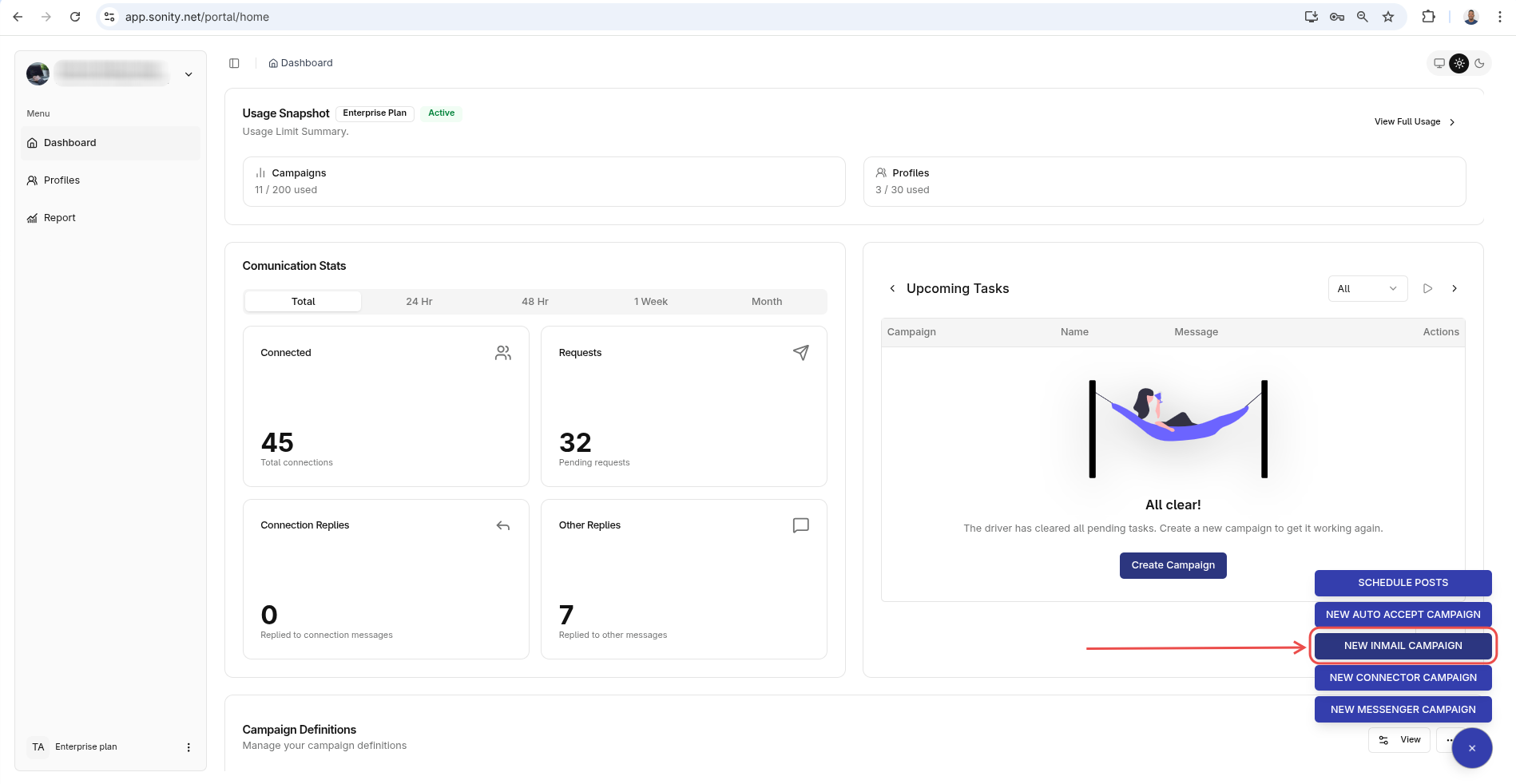
Step 1: Click New InMail Campaign
Navigate to the Home page and click New InMail Campaign:
Step 2: Enter name and or campaign seed
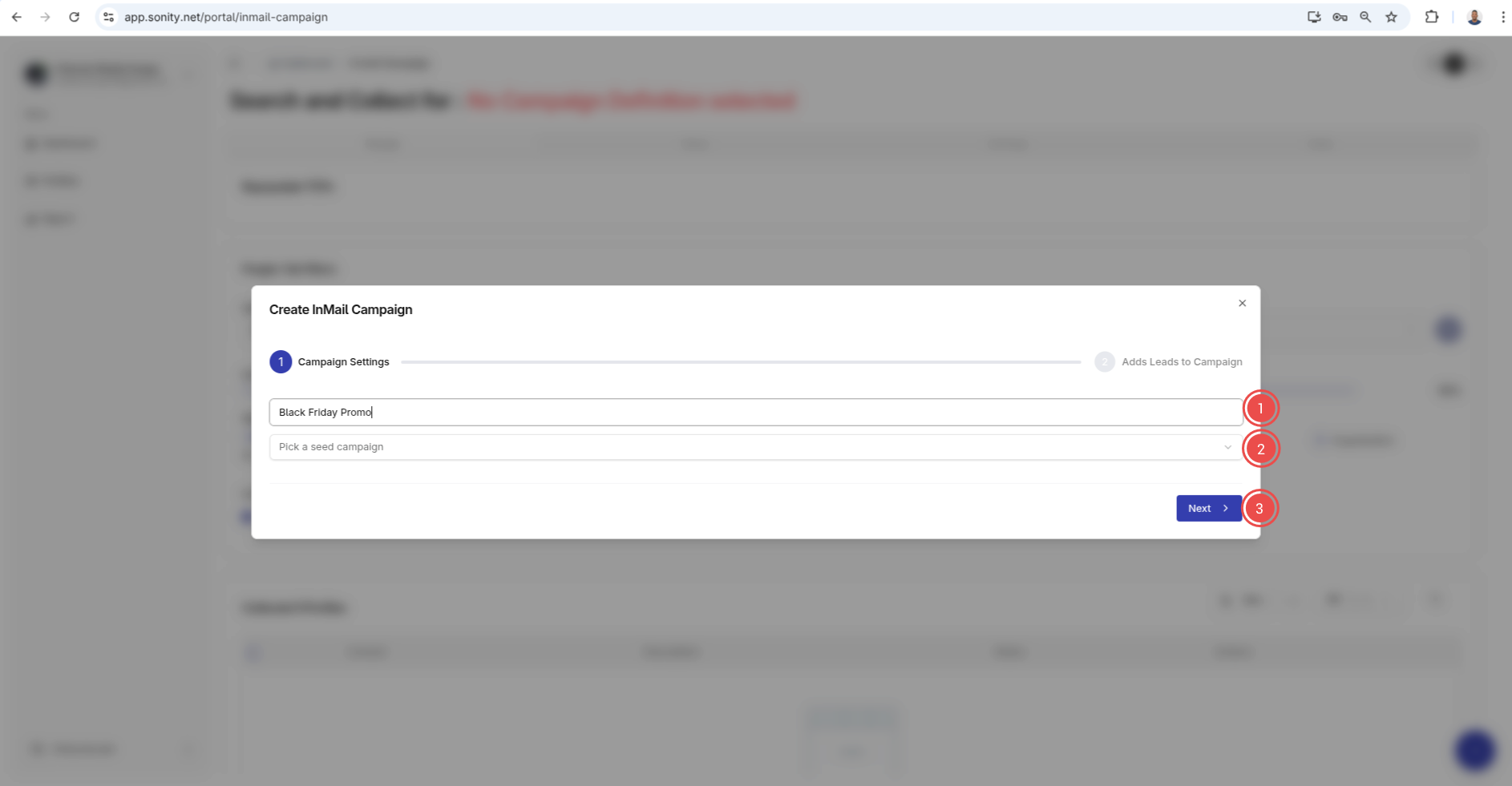
Enter campaign name and seed campaign if there one. When you select a Seed Campaign, its campaign steps will be used to seed the current campaign that you are creating. In other words this current campaign will have Seed Campaign step after creation:
Step 3: Add contacts
After you campaign is created you need to add contacts to the campaign. There are many methods to this
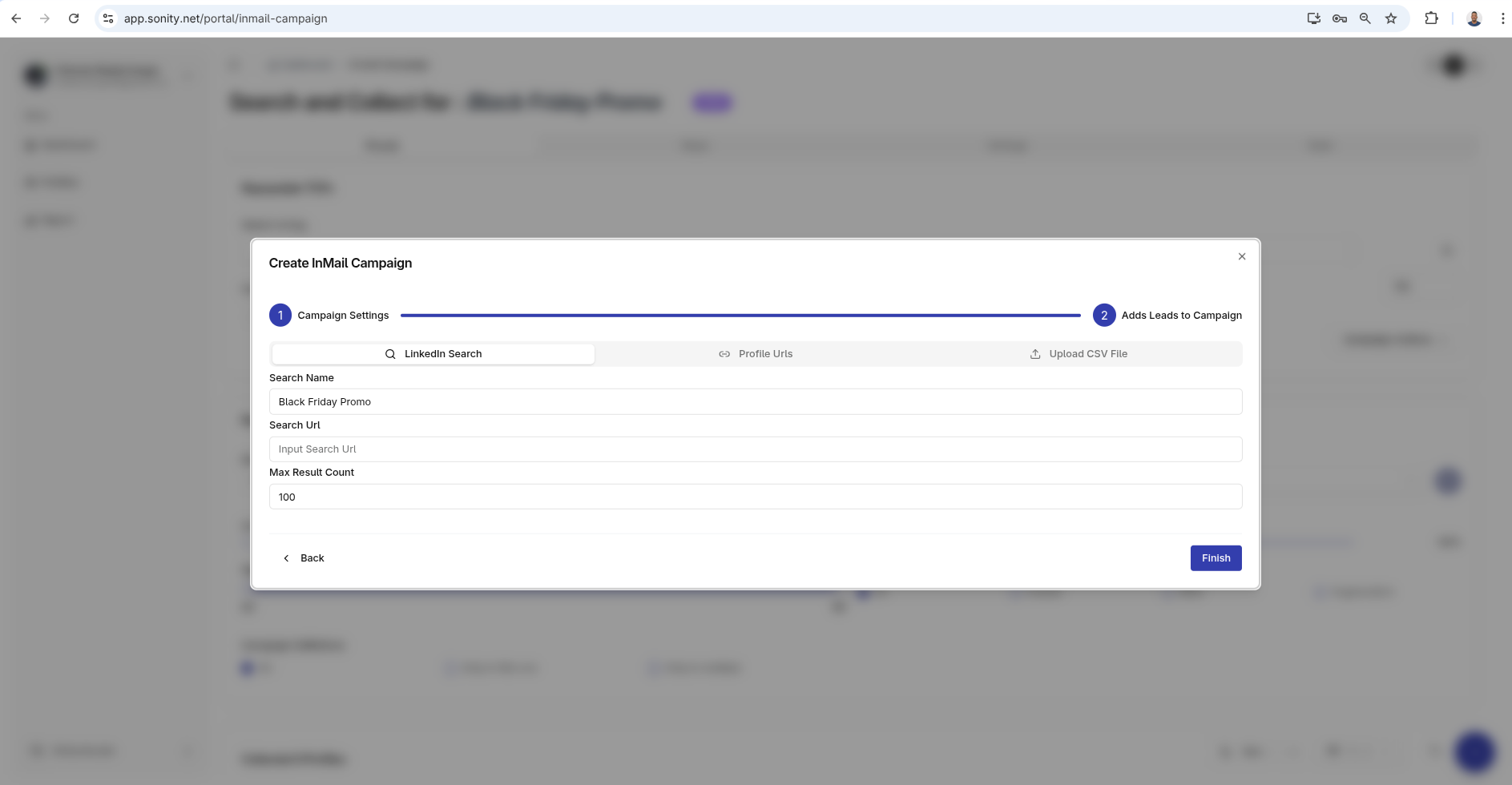
Method 1: LinkedIn Search
To get the Search URL, use LinkedIn search or Sales Navigator search, enter your criteria, copy the URL, then paste it in the Search URL field:
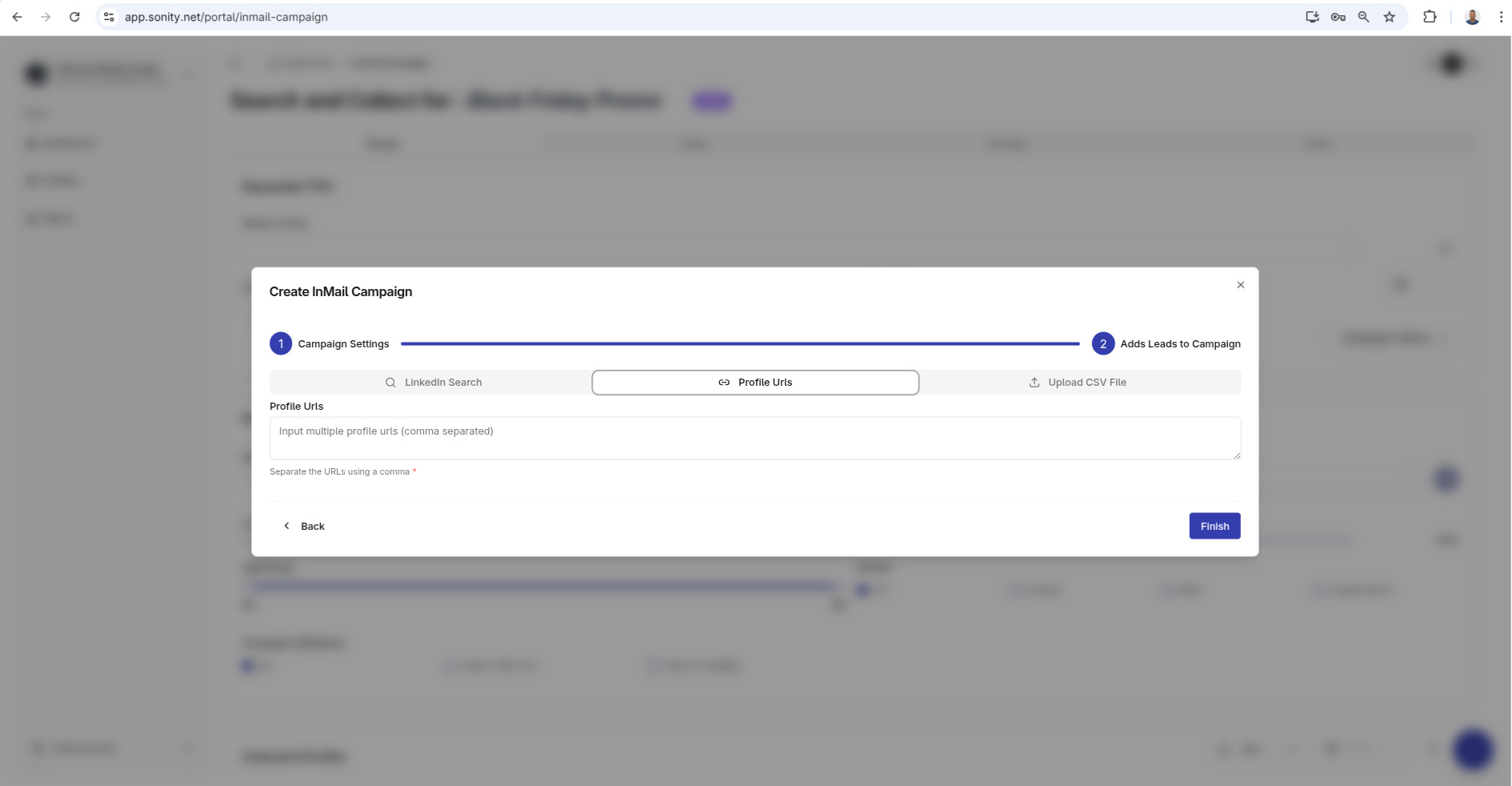
Method 2: Paste Profile URL
You also paste Linked profile URLS:
https://www.linkedin.com/in/lisa, https://www.linkedin.com/in/john, https://www.linkedin.com/in/leo
This is of course ideal when you have a few specific contacts that you are targeting
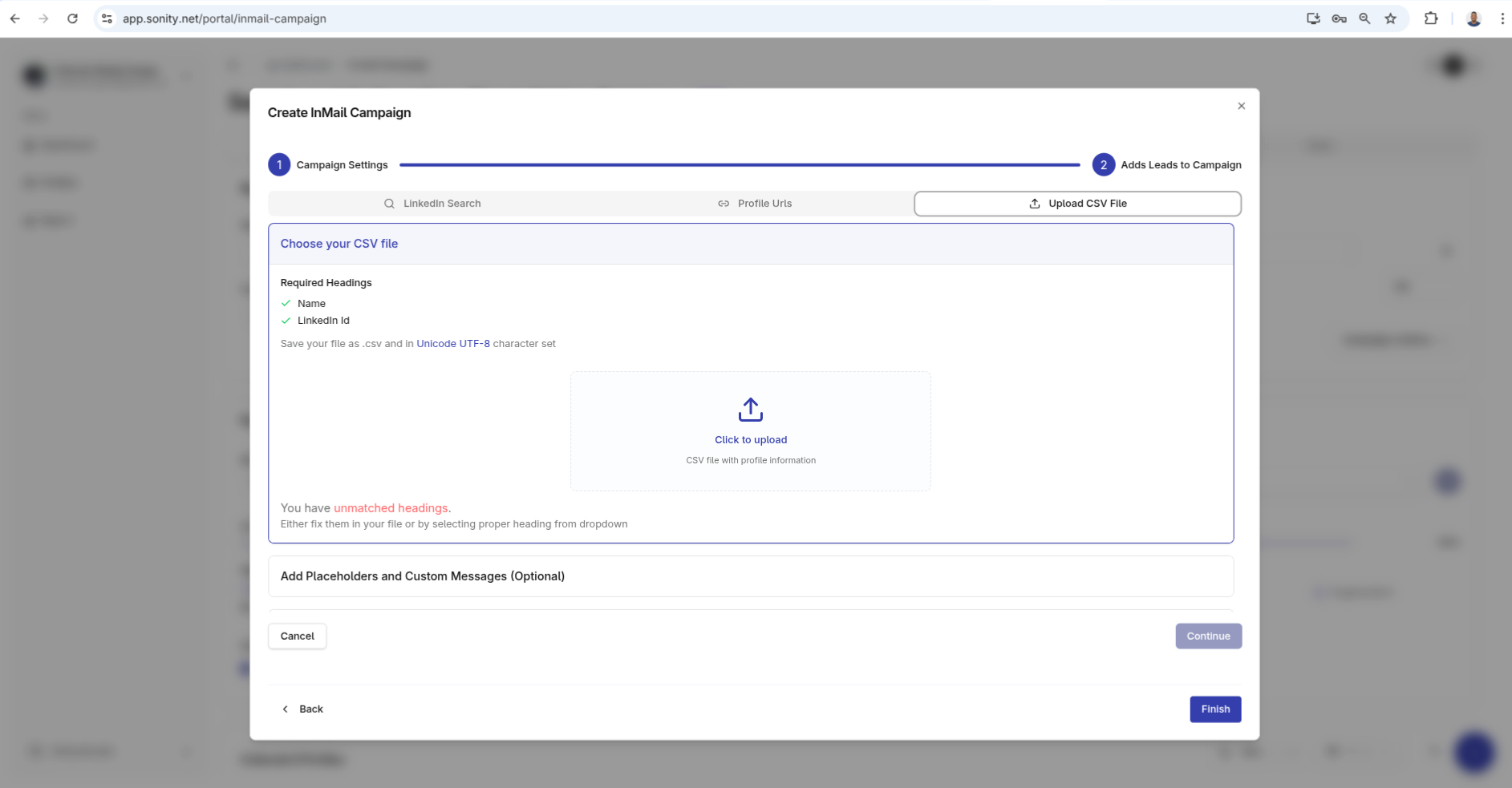
Method 3: Upload CSV File
You can also add contacts by using a CSV file. Upload the file and follow the prompts:
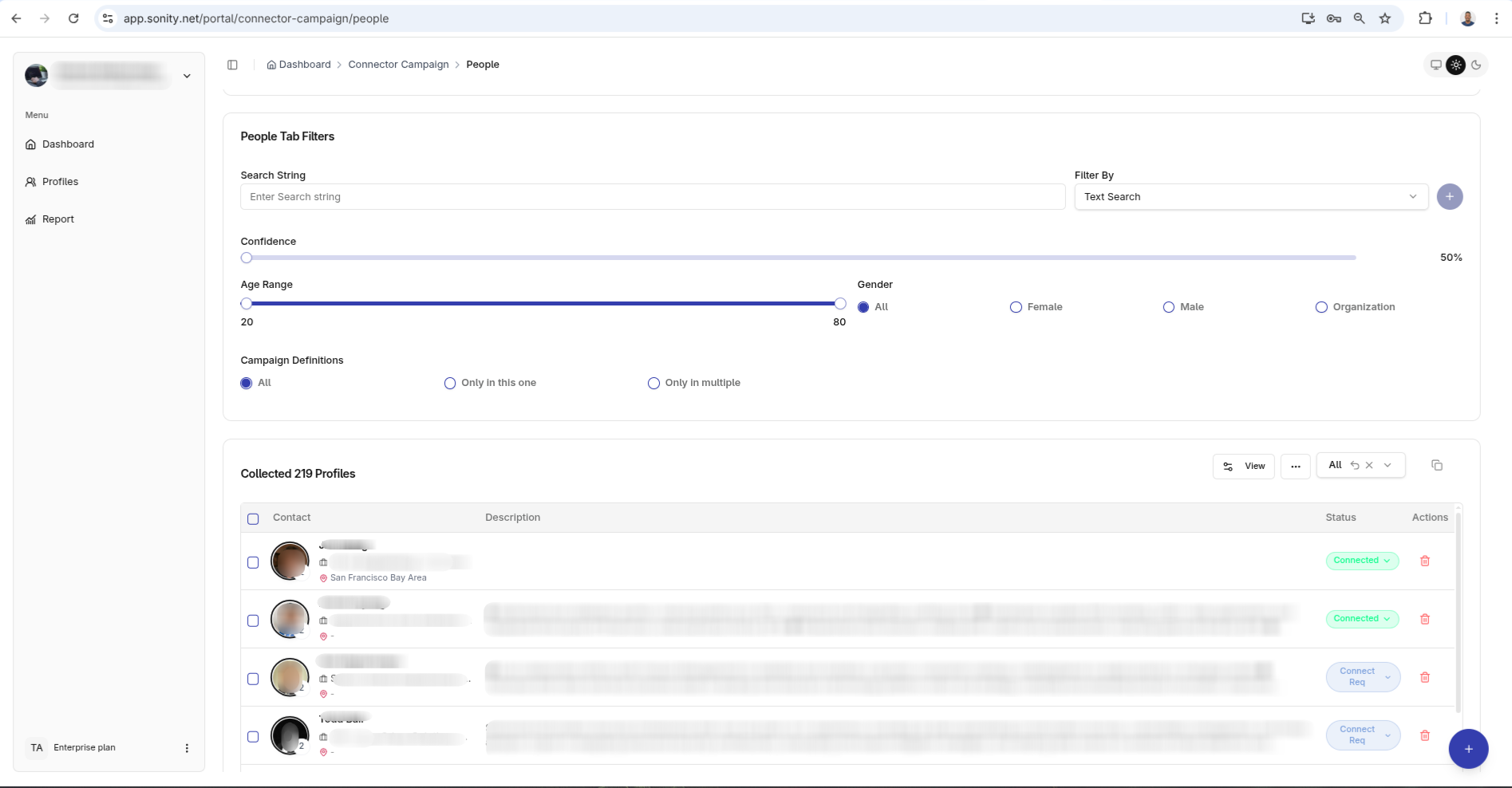
After this is done it should take you to the People Tab: